| User Roles |  Admin Admin |  Staff contributor Staff contributor | ✗External contributor | ✗Pulse user |
The Share Capital Reconciliation, Statutory Information and Dividend Reconciliation templates are all connected, and you may need to enter information on each of them in any given period. This article explains what each template does, the order to complete them in, and how the data flows through to your accounts production notes and dividend documents.
Table of contents
- The Share Capital Reconciliation
- The Statutory Information template (directors, secretaries and shareholders)
- The Dividend Reconciliation template
- Dividend summary
- Dividend documents
The Share Capital Reconciliation
The Share Capital Reconciliation is found in the equity section of your working papers and is where you record the company's share capital structure.
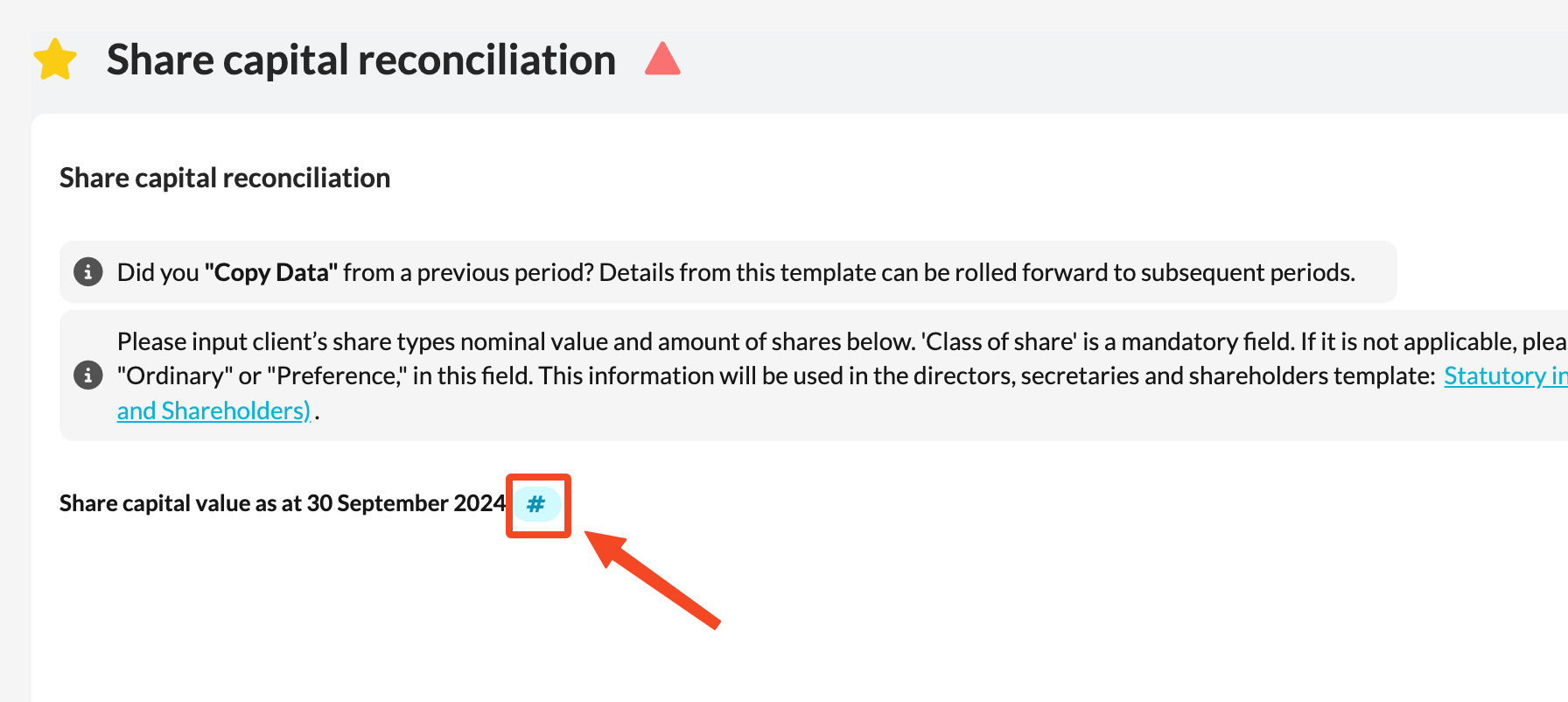
Use the # functionality to pull in the share capital nominal code(s) to be reconciled:
- Select the # to open the account selection screen.
- Select the relevant account codes on the left; they move to the right.
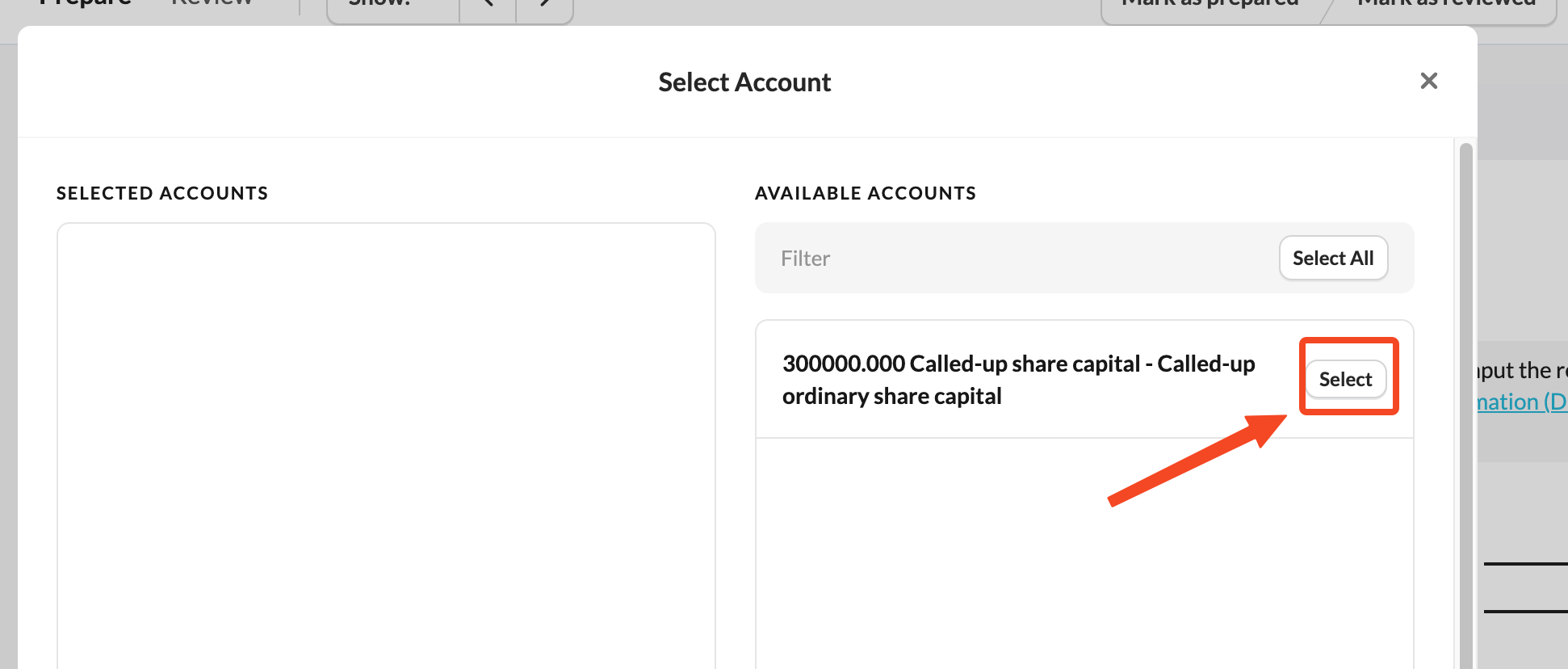
- Click Save.
The template totals the selected accounts and reconciles that value against the share table below.
Completing the share table
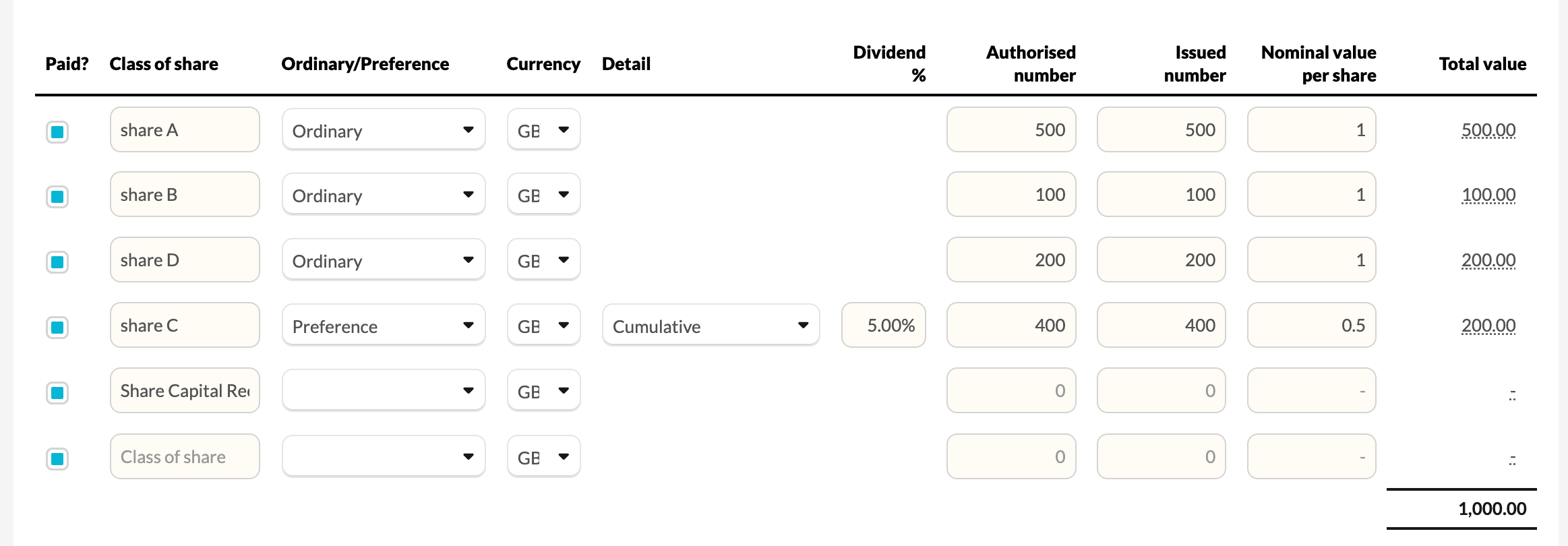
For each class of share, complete the table columns:
- Paid? – tick if payment has been received for that class. This feeds the Note – Called up share capital & reserves.
- Class of share (mandatory) – if a class name isn't applicable, enter the share type (e.g. "Ordinary" or "Preference"). Each class becomes a selectable option in the Statutory Information, Dividend Reconciliation and Dividend Summary templates, so complete this first.
- Ordinary/Preference – select the share category. Detail and Dividend % apply to preference shares.
- Currency – defaults to the file currency. A different currency updates the Note – Called up share capital & reserves. This field is required for period ends after 30 April 2022. If a class is in a currency other than the company currency, an FX rate column appears so the value can be converted.
- Detail – for preference shares, select the terms (None, Cumulative, Non-cumulative, Redeemable, Non-redeemable, and combinations).
- Dividend % – for preference shares.
- Authorised number, Issued number and Nominal value per share – Issued number × Nominal value gives the Total value, which should reconcile to the trial balance figure. If share classes share a name you'll see a warning to merge or rename them; if a rounding difference remains, an explanation/attachment row lets you clear the reconciliation dot.
Share issues, repurchases and restructures
If the share structure changed in the period, summarise the movements (Class, In issue at year start, New issues, Repurchased, Restructure, In issue at period end). The closing number for each class must equal the issued number entered above.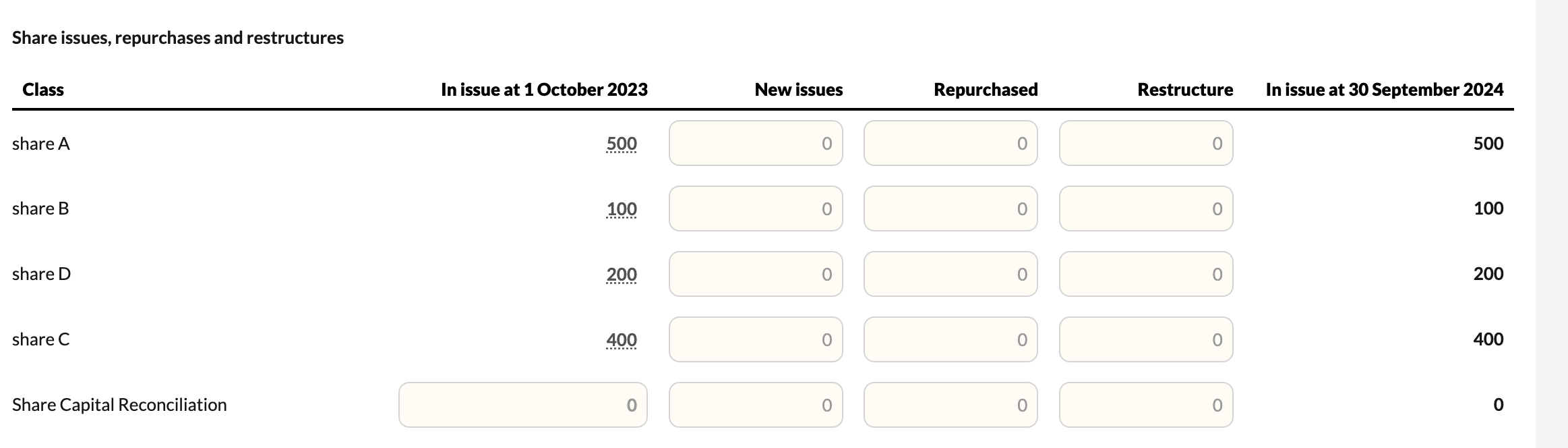
The Statutory Information template (directors, secretaries and shareholders)
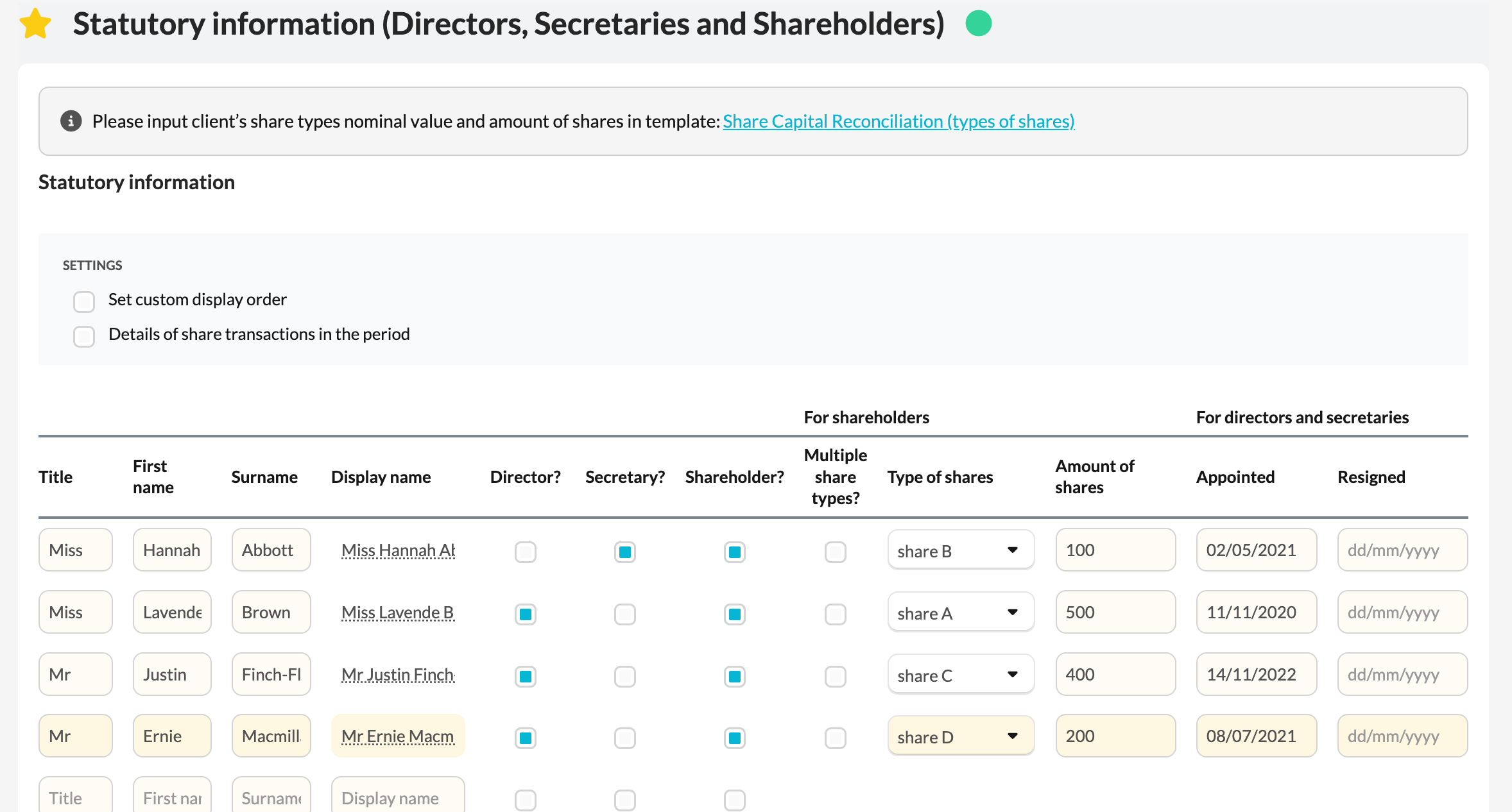
- Use the first table to record directors, shareholders and the company secretary. With an Admin sync you can populate director information from Companies House; otherwise enter details manually.
- Only first name and surname are required; the display name (auto-concatenated, editable) is how the individual appears in the financial statements.
- Designating someone a director or secretary requires appointment/resignation dates.
- To control the order in which directors and secretaries are displayed, tick Set custom display order to reveal a sequencing column. Your chosen order flows through automatically to the Company Information template, the Directors' Report, and the other relevant downstream templates.
- Designating someone a shareholder requires their shareholding. The share-type options come from the Share Capital Reconciliation, so populate that first. If a shareholder holds more than one class, use the multiple share types? button to add them on subsequent lines.
- If shares in issue and each shareholder's percentage were unchanged in the period, simply enter the number of shares per shareholder. If there were transactions at shareholder level, enable details of share transactions in the period to record acquisitions and disposals per shareholder and class.
Recording these transactions is essential for Silverfin to apportion dividends correctly.
Copying prior-period data
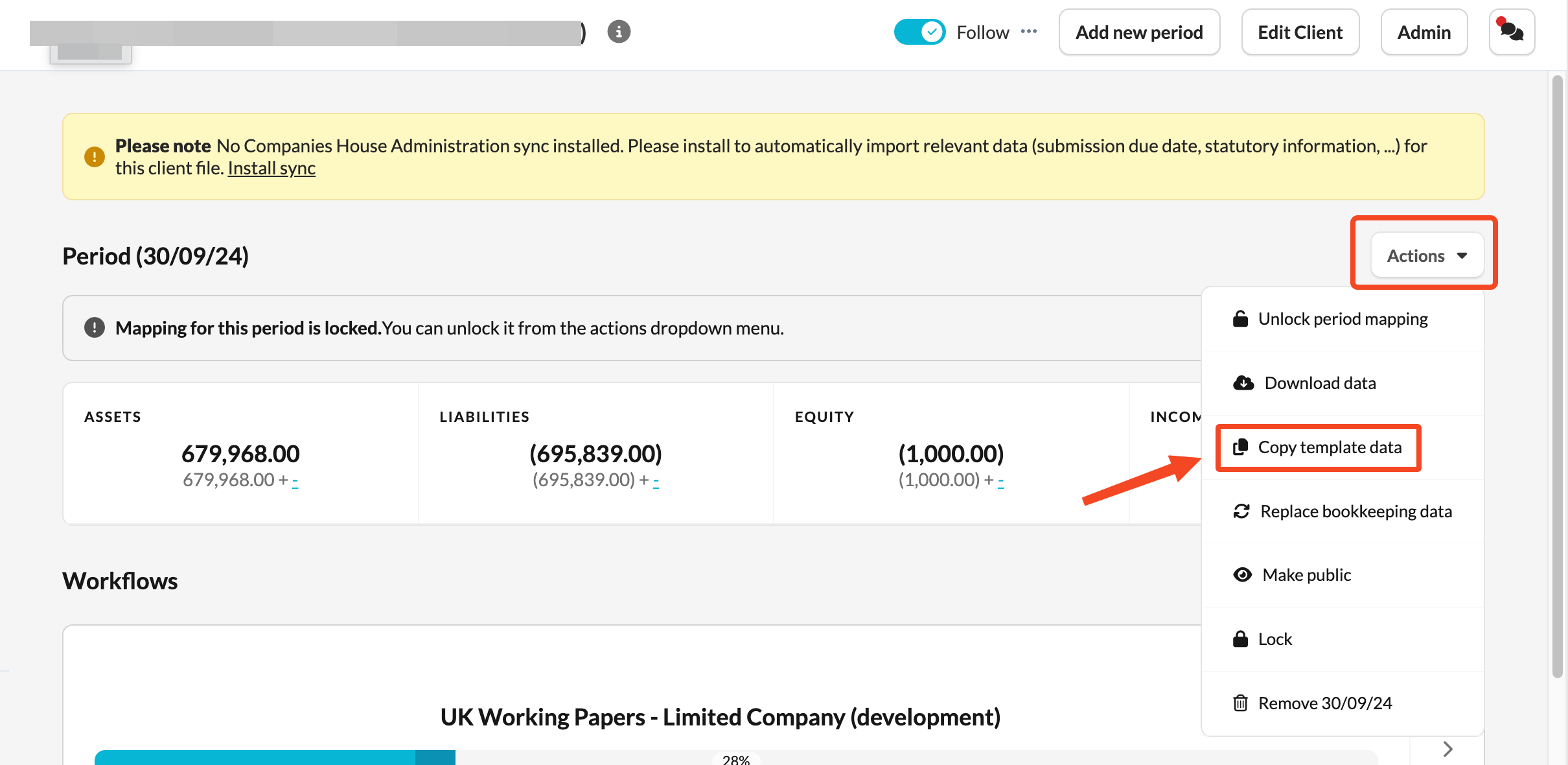
To copy prior-period data, do it at Client level:
- Go to Company Overview.
- Select Actions → Copy template data.
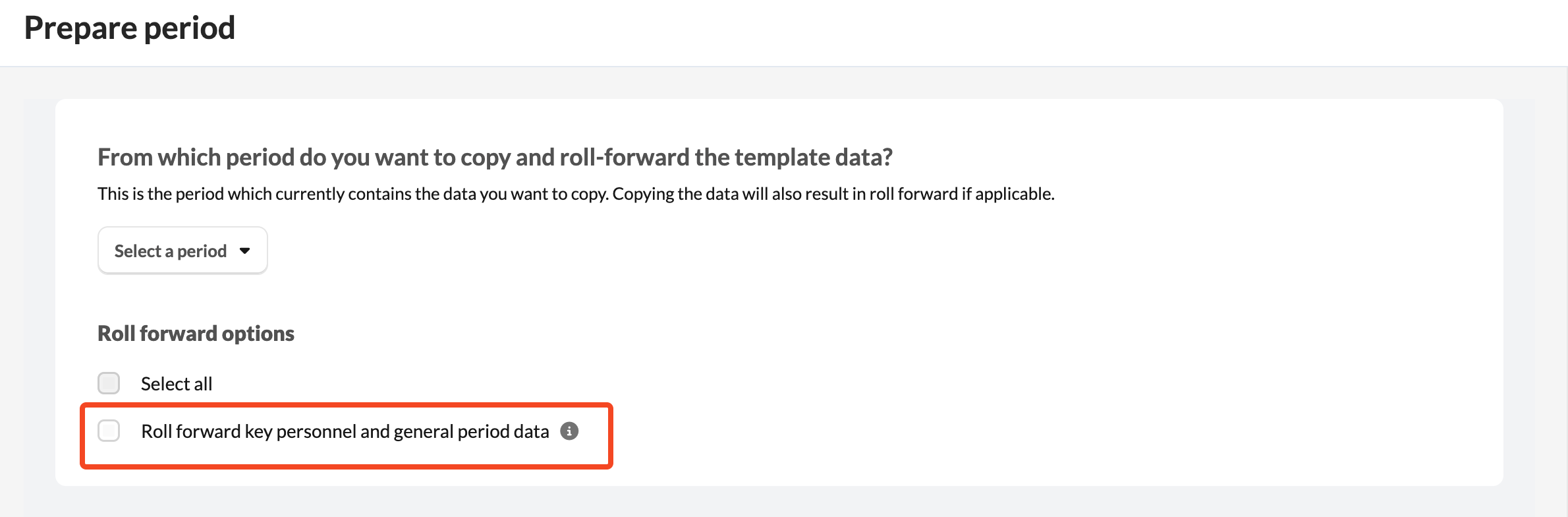
- Choose Roll forward key personnel and general period data.
The Dividend Reconciliation template
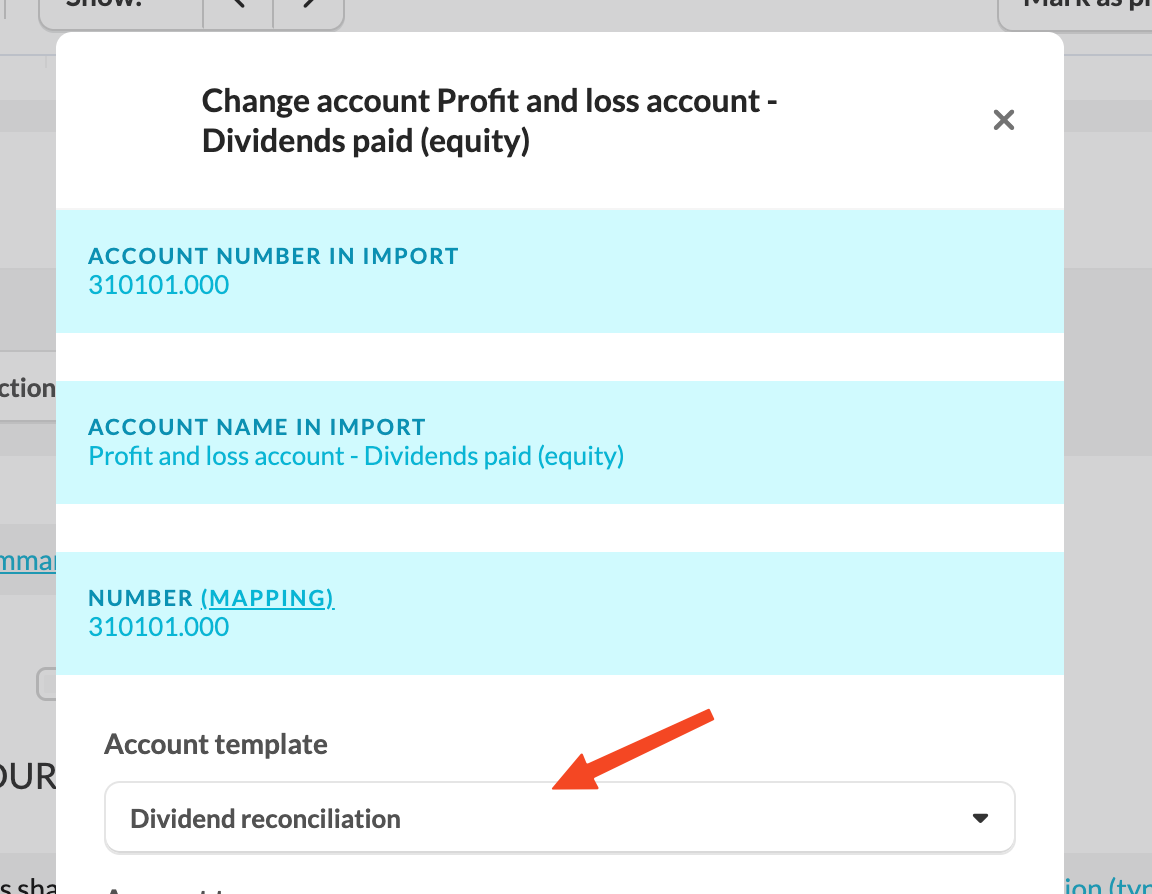
Assign the dividend reconciliation account template to the dividend nominal code(s):
- Open the account in working papers.
- Click Edit.
- Select Dividend Reconciliation.
The Statutory Information template must exist first.
For each dividend, enter the Payment date (a warning shows if it falls before the period start) and select the Type of shares (options come from the Share Capital Reconciliation). Number of shares is pulled from the Statutory Information template, and entering the Dividend amount calculates the Rate (amount ÷ number of shares). You can attach supporting documentation.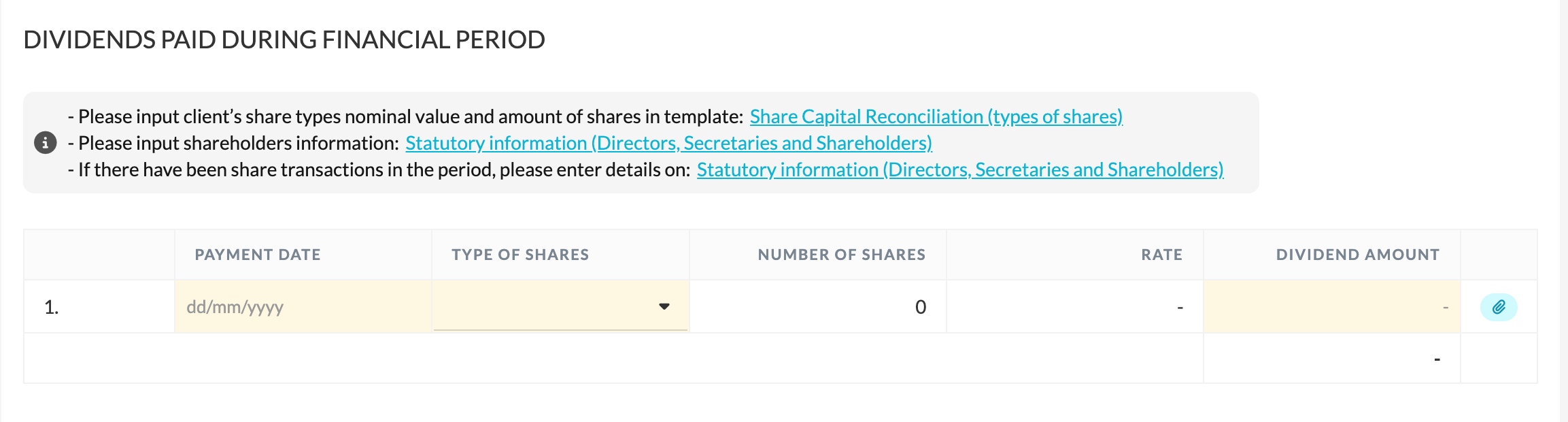
Breakdown by tax year
Below the entry table, dividends are broken down per share type and shareholder. Because dividends are taxed on a UK tax-year basis, the breakdown and reconciliation summary apportion each payment into the relevant tax year (6 April–5 April) — you'll see one column per tax year covered by the accounting period (e.g. "Dividends declared in the tax year 2024/2025"), plus a Dividends declared Post 5th April 20XX column where a payment falls after the last tax-year end in the period. The reconciliation totals these into Total financial year and shows a red/green dot against the trial balance value.
Dividend waivers
Tick Include dividend waivers to add three columns: Dividend waived?, Nbr. of shares waived and Nbr. of shares (after waiver).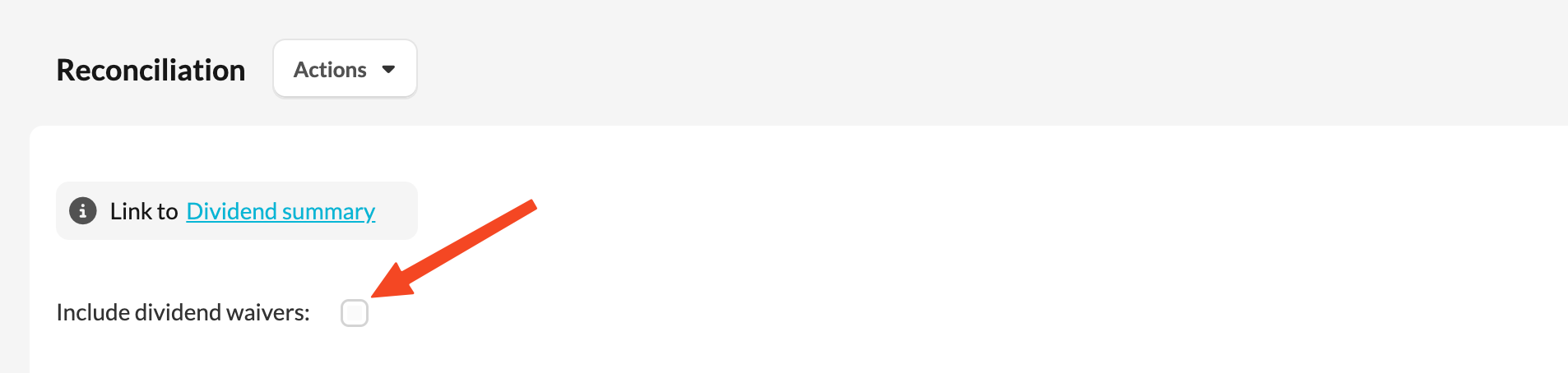
Dividend summary
The three templates above feed the Dividend summary template, useful where there are multiple dividend codes. The only input required is pulling in the relevant dividend nominal code(s) with the # functionality.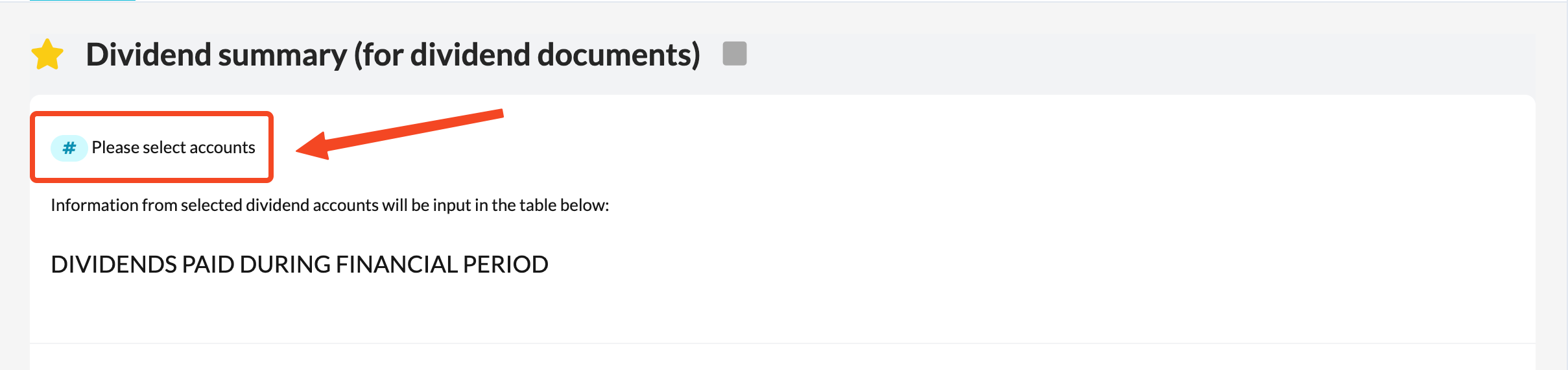
Dividend documents
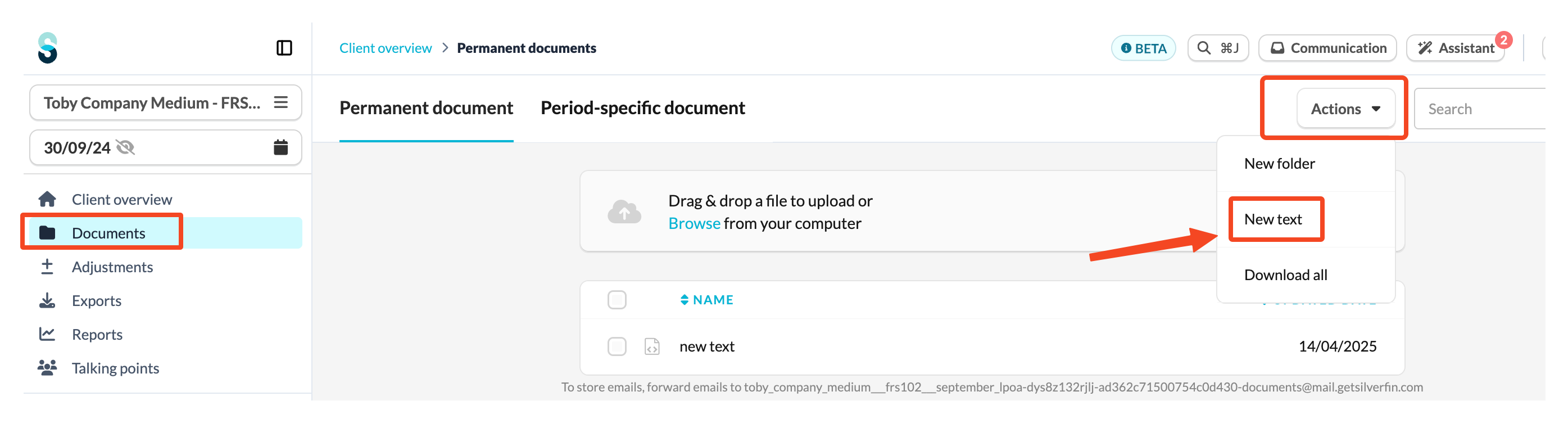
The Dividend Board Minutes and Dividend Vouchers documents auto-populate from the Statutory Information, Dividend Reconciliation and Share Capital Reconciliation templates. If they aren't already in your Documents folder, use Actions → New Text to add them.