
| User Roles |  Admin Admin |  Staff contributor Staff contributor | ✗External contributor | ✗Pulse user |
Medical Accounts in Silverfin are designed for practices preparing accounts for medical partnerships, including GP practices and other specialist medical entities. The workflow builds on Silverfin’s standard Unincorporated Accounts workflow, with additional templates, notes, and presentation options tailored to the AISMA-style accounts format.
This article explains how to set up Medical Accounts, what is included, and how to use the key templates and new features.
Table of contents
- Set up Medical Accounts
- Medical Profit and Loss Account
- Notes to the Profit and Loss Account
- Dispensing gross margin
- Partners template and profit allocation
- Profit allocation note
- Current accounts
- Drawings and superannuation notes
- Personal income and personal expenses
- Handling larger numbers of partners
- Need help?
Set up Medical Accounts
Medical Accounts can be enabled from an Unincorporated Accounts workflow. This works for both sole traders and partnerships.
To set this up:
- Add or open an Unincorporated Accounts workflow.
- Go to the General Settings template.
- Find the setting for Industry specific formats.
- Select Medical from the dropdown.

Make sure you are using the Medical Mapping List so that the chart of accounts maps correctly into the Medical Accounts format.
Medical Profit and Loss Account
The Medical Profit and Loss Account follows a medical accounts format and is designed to support the AISMA-style presentation.
The Profit and Loss Account includes the following headers:
- NHS income
- Other NHS income
- Other non-NHS income
- Dispensing gross margin
- Expenditure
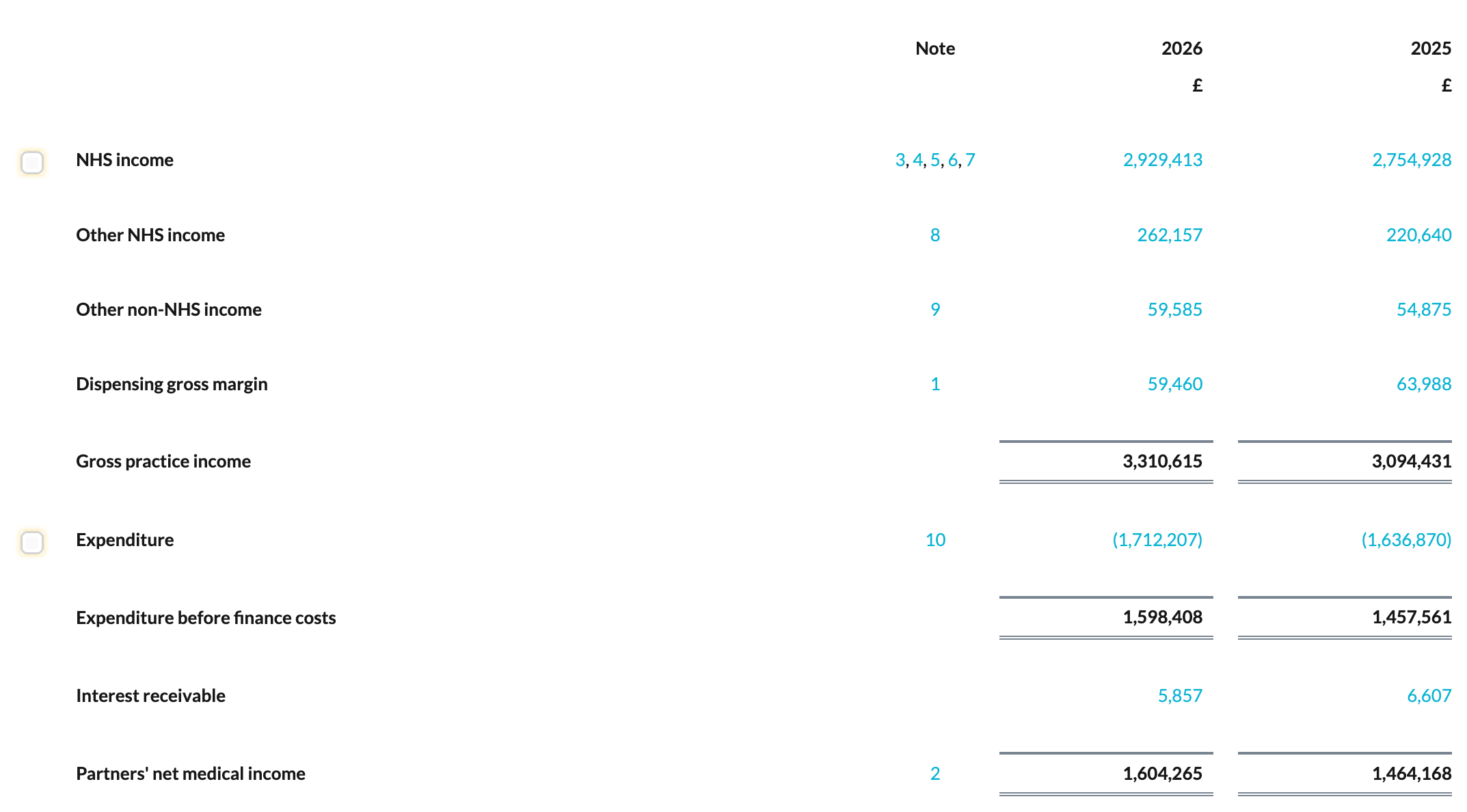
This gives a clearer structure for medical accounts and helps you present income and expenditure in a way that is more suitable for GP practices and other medical clients.
Notes to the Profit and Loss Account
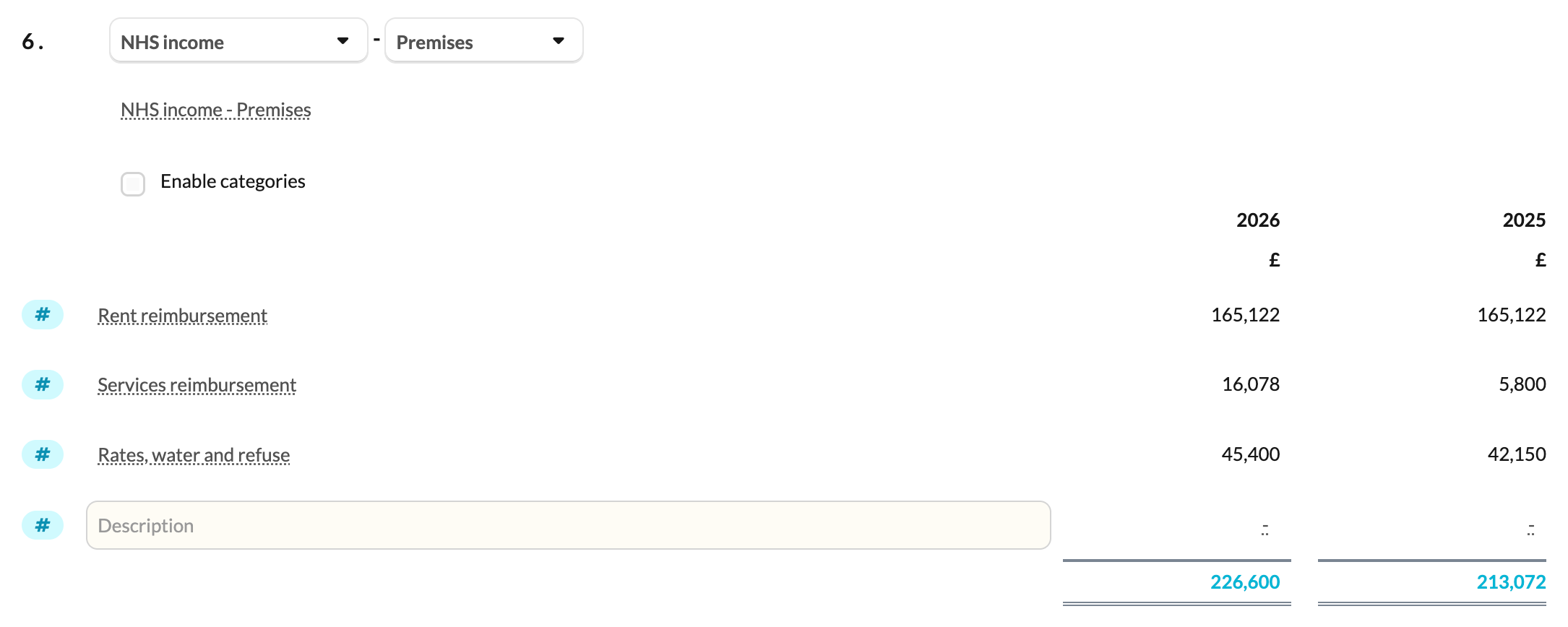
The Notes to the Profit and Loss Account template allows you to provide a detailed breakdown of the line items shown in the Profit and Loss Account.
Within the note, you can:
- Select the Profit and Loss Account line item you want to break down.
- Use account selectors to choose which accounts should appear on each line.
- Create flexible breakdowns based on the accounts used in the client file.
Categories
For further flexibility, enable categories where a more detailed split is needed. This is particularly useful for areas such as enhanced services income, where you may need to split income between categories such as:
- Directed
- National
- Local
- Other
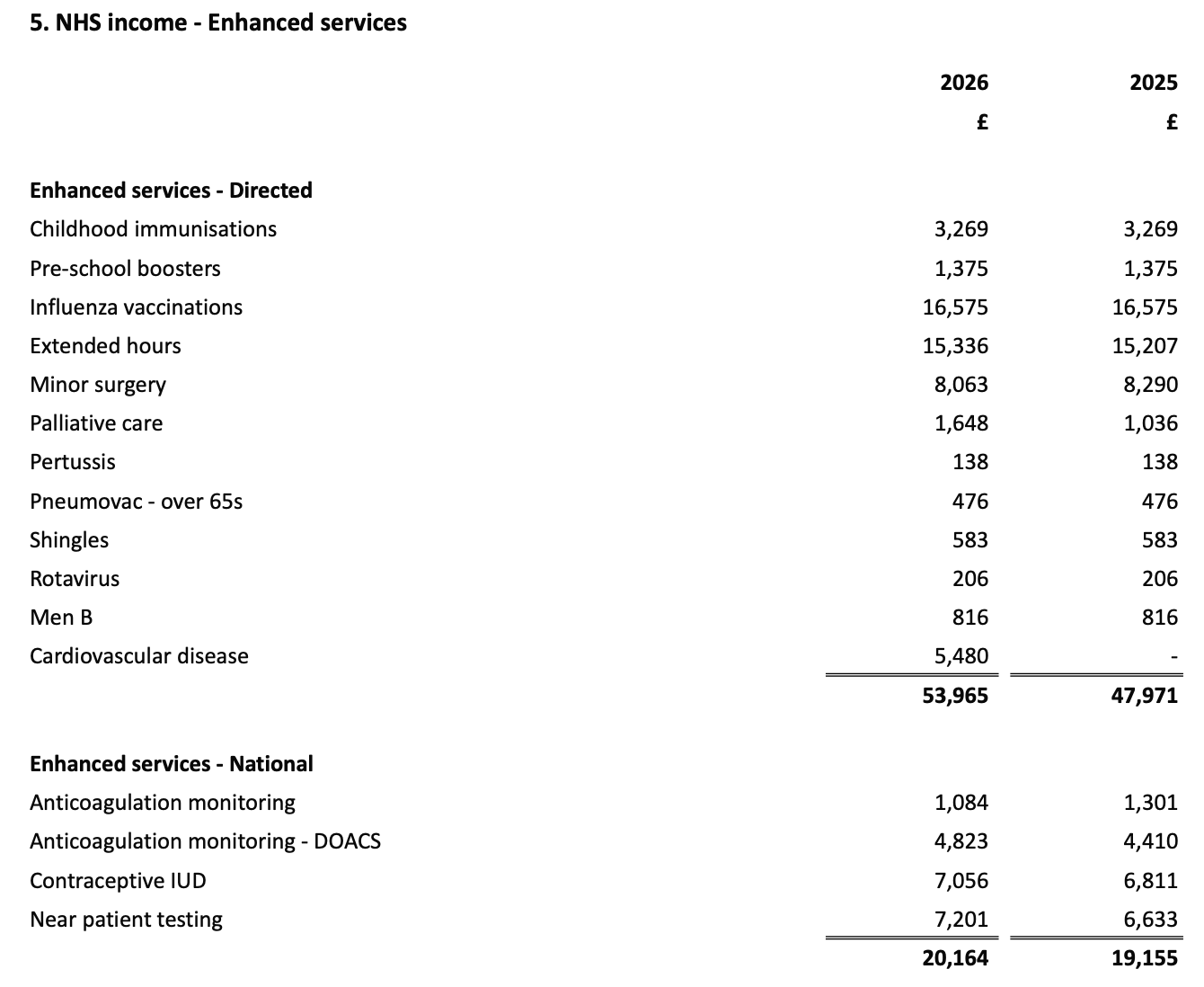
Subtotals can then be shown as part of the wider note, giving you more control over how the breakdown is presented.
Dispensing gross margin
Medical Accounts include a dedicated Gross Margin Summary — Dispensing note.
This note is used where a medical practice has dispensing income and related cost of sales.
Instead of showing dispensing income and dispensing costs separately on the face of the Profit and Loss Account, Silverfin calculates and presents a single dispensing gross margin line.
The detailed breakdown is then shown in the gross margin note.
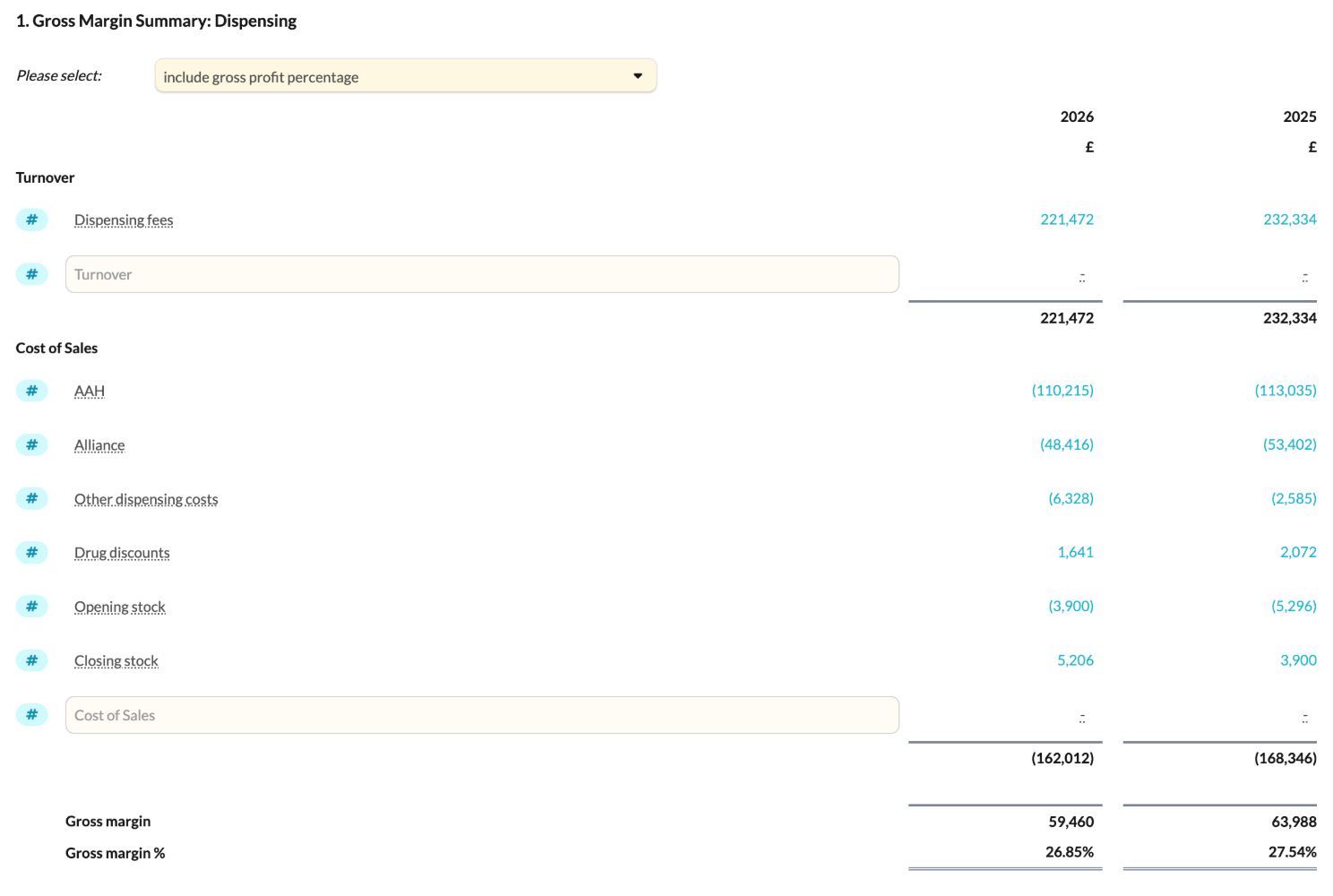
This means:
- The Profit and Loss Account remains clear and concise. The net effect of dispensing activity is presented as one gross margin figure.
- You can still provide the full breakdown of dispensing income and costs in the supporting note.
Partners template and profit allocation
The Partners template includes the standard partnership details required for the accounts, such as:
- Salary
- Prior shares
- Interest
- Profit allocation
Medical Accounts also include support for a variable profit split.
This allows the accounting period to be split into smaller periods, where each period can have a different profit allocation.
You can also enter the profit split using units, which is useful for medical partnerships where profit allocation may be based on partner sessions.

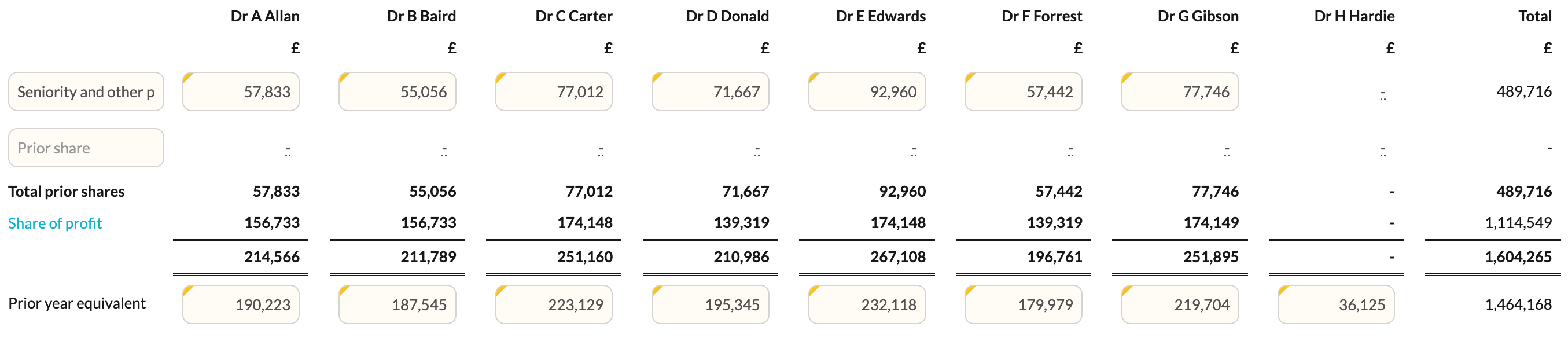
Profit allocation note
The Profit Allocation note allows prior profit allocations to be displayed separately.
Current accounts
The Current Accounts note works in a similar way to the standard partnership current account, but with medical-specific wording for items such as “share of net medical income” rather than “share of profit”, and “superannuation contributions” rather than “pension contributions”.
In Medical Accounts, the current account groups the following items together as Share of net medical income:
- Salary
- Prior shares
- Profit allocation
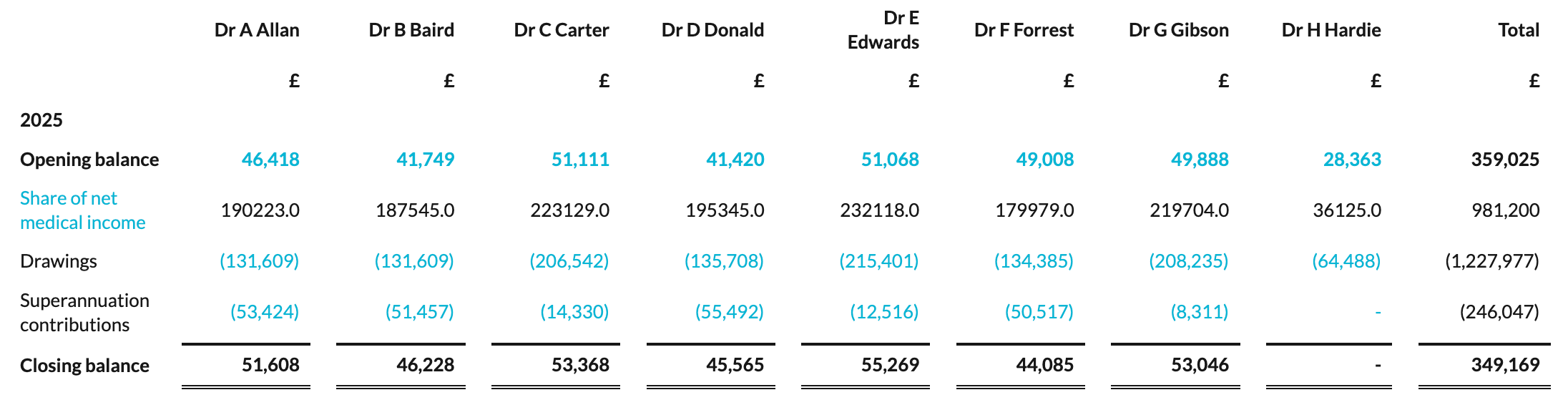
This helps align the current account presentation with the Medical Accounts format.
Drawings and superannuation notes
Medical Accounts include separate notes for:
- Drawings
- Superannuation
In the Current Accounts note, drawings and superannuation contributions are shown as single totals per partner.
If you need to provide a more detailed breakdown, you can use the dedicated drawings and superannuation notes.
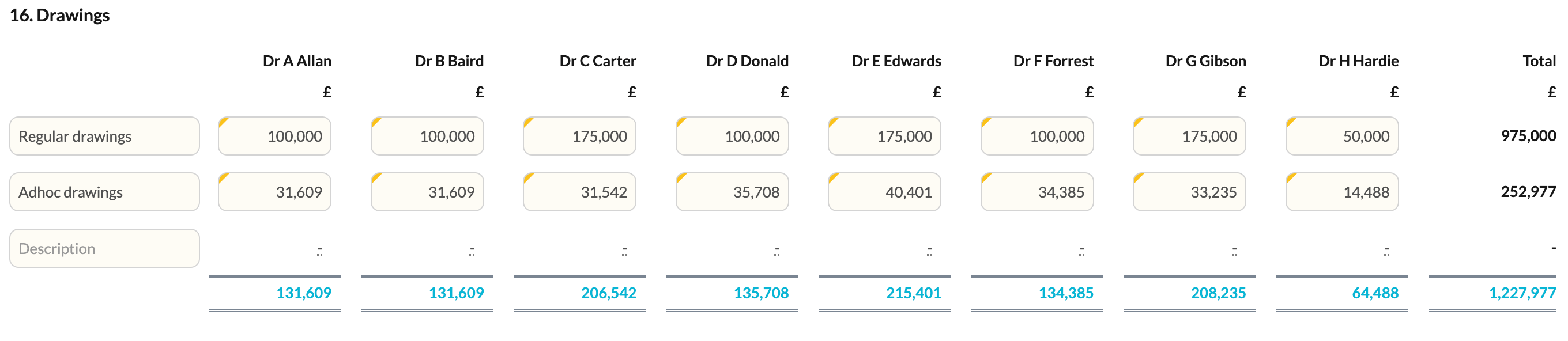
These notes work in a similar way. Each one uses a custom editable table, so you can manually enter the breakdown that makes up the total. Reconciliation checks back to the current account note confirm that the figures tie up.
Personal income and personal expenses
Medical Accounts also include new notes for:
- Personal income
- Personal expenses
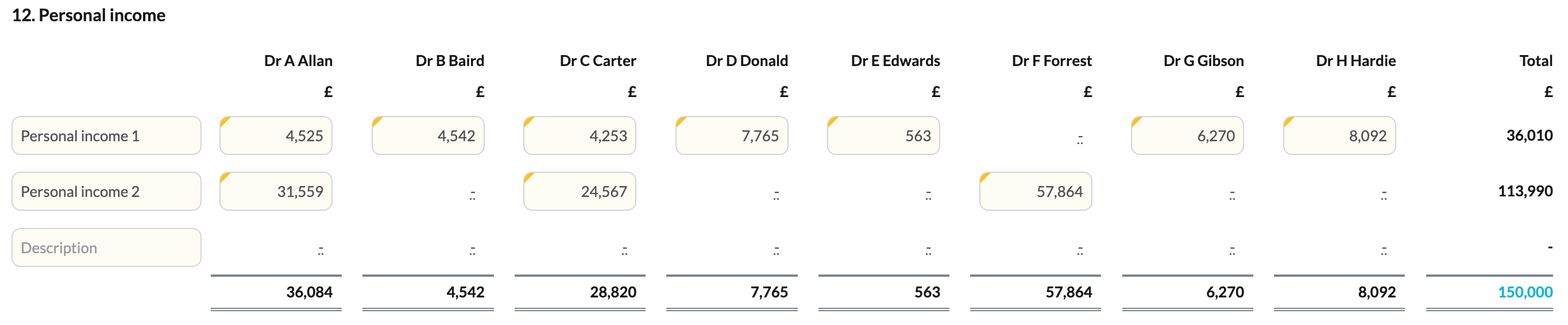
These notes support line items shown in the Profit and Loss Account and allow you to provide a breakdown per partner.
Handling larger numbers of partners
Some medical partnerships have a large number of partners. Where there are more than eight partners, certain templates can become difficult to present clearly on a single table.
To improve readability, Silverfin automatically adjusts the presentation for the following templates:
- Profit allocation
- Current account
- Capital account
- Land and property capital account
- Additional capital account
- Drawings
- Superannuation
- Personal income
- Personal expenses
When the number of partners is too large to display clearly in one table, Silverfin duplicates the table structure and splits the partners across two or more tables as needed.
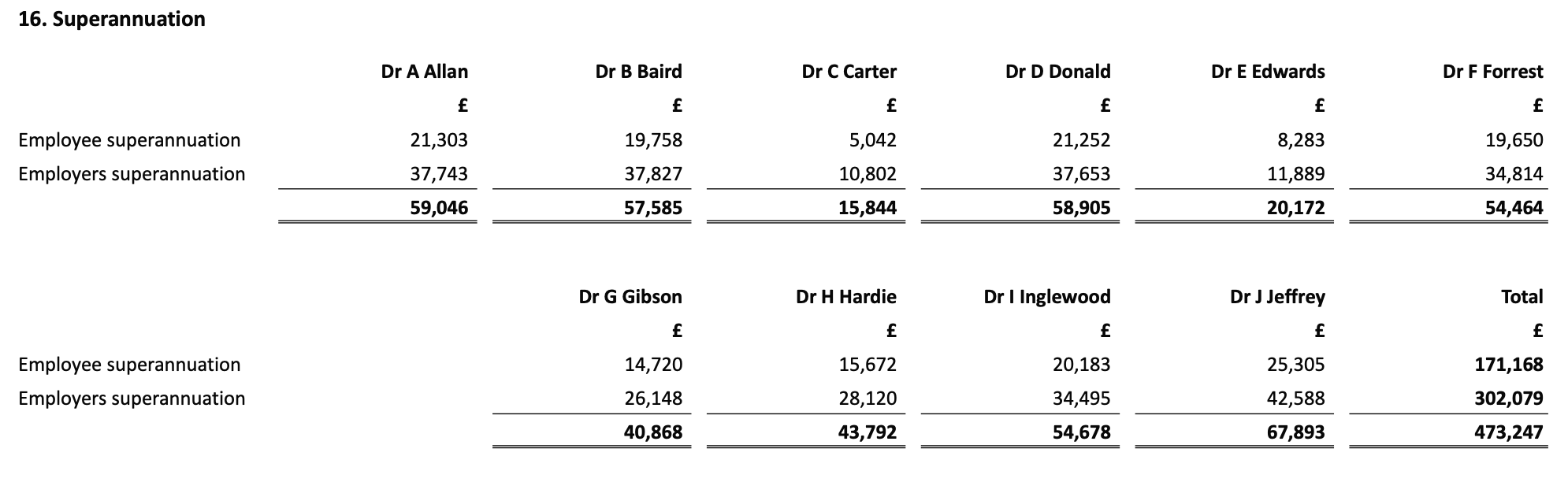
This creates a cleaner layout and makes the accounts easier to review.
Need help?
If you have any questions about using Medical Accounts, or if the Medical option is not available in your workflow, please contact your Customer Success Manager.
Silverfin supports partnerships with up to 22 partners.