
| User Roles |  Admin Admin |  Staff contributor Staff contributor | ✗External contributor | ✗Pulse user |
This article explains how to integrate Acerta with Silverfin, allowing you to quickly and accurately generate the social balance, the payroll tax certificate for employees, remuneration data for company directors (including form 281.20), and the PDF for benefits in kind for company directors from the income year 2024 onwards.
Table of contents
- How to Set Up the Integration with Acerta
- Using the Integration with Acerta in Silverfin
- Why are multiple Acerta options visible in a template?
How to Set Up the Integration with Acerta
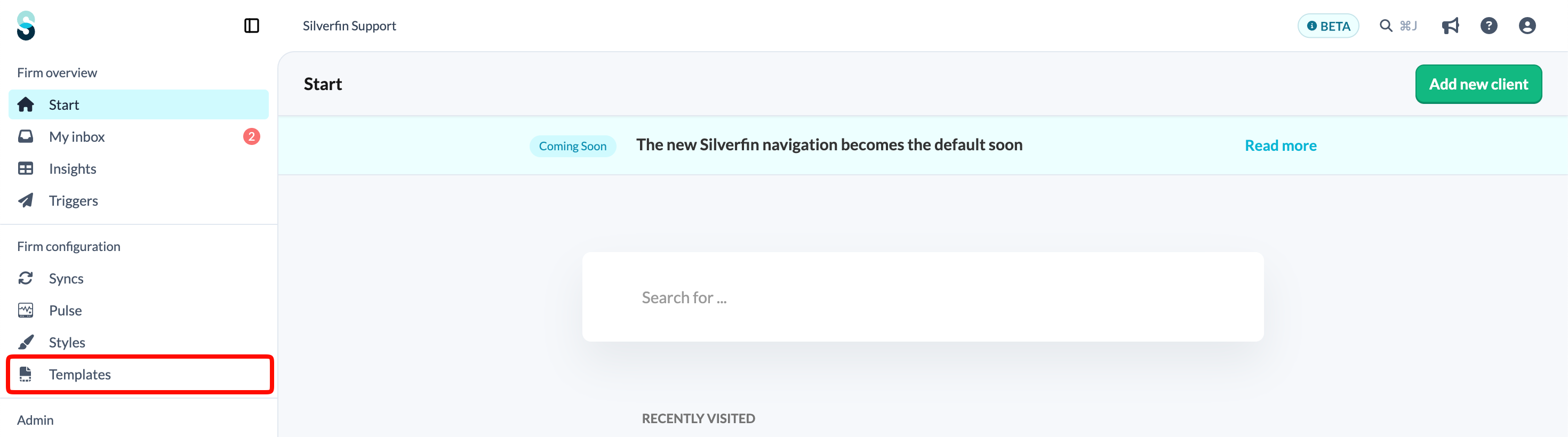
- Go through the left navigation panel to the Templates tab.
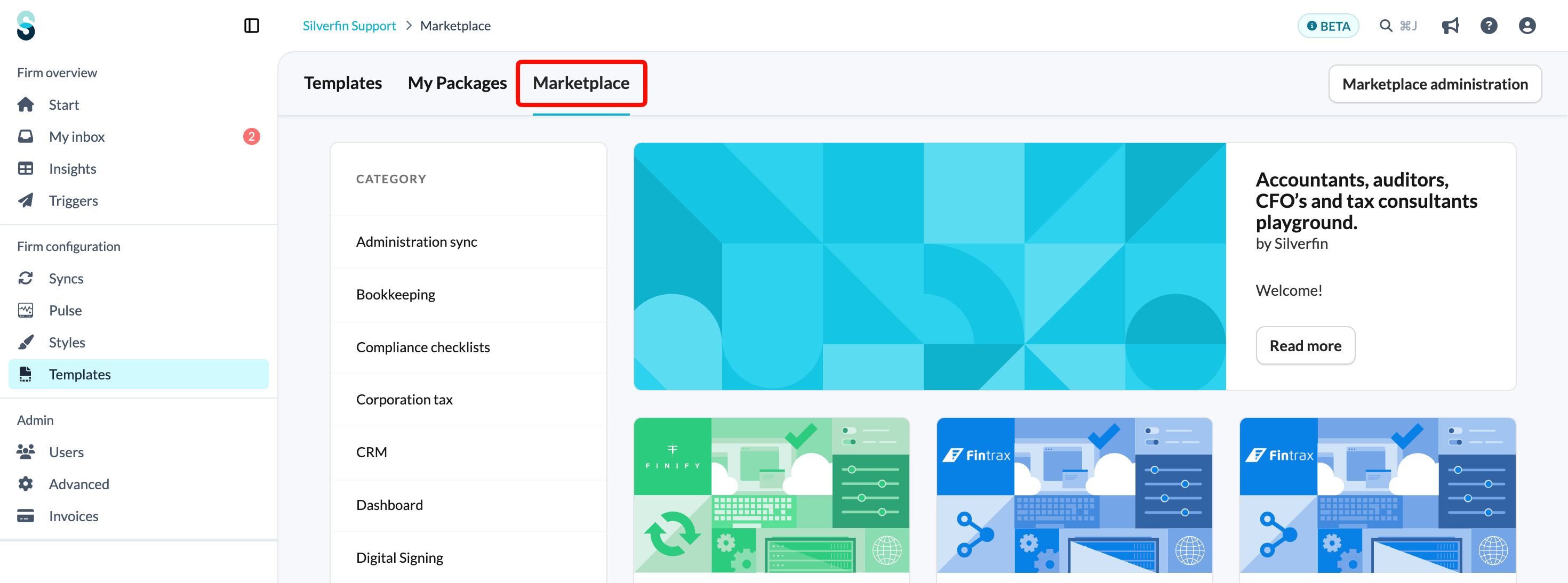
- Go to Silverfin Marketplace.
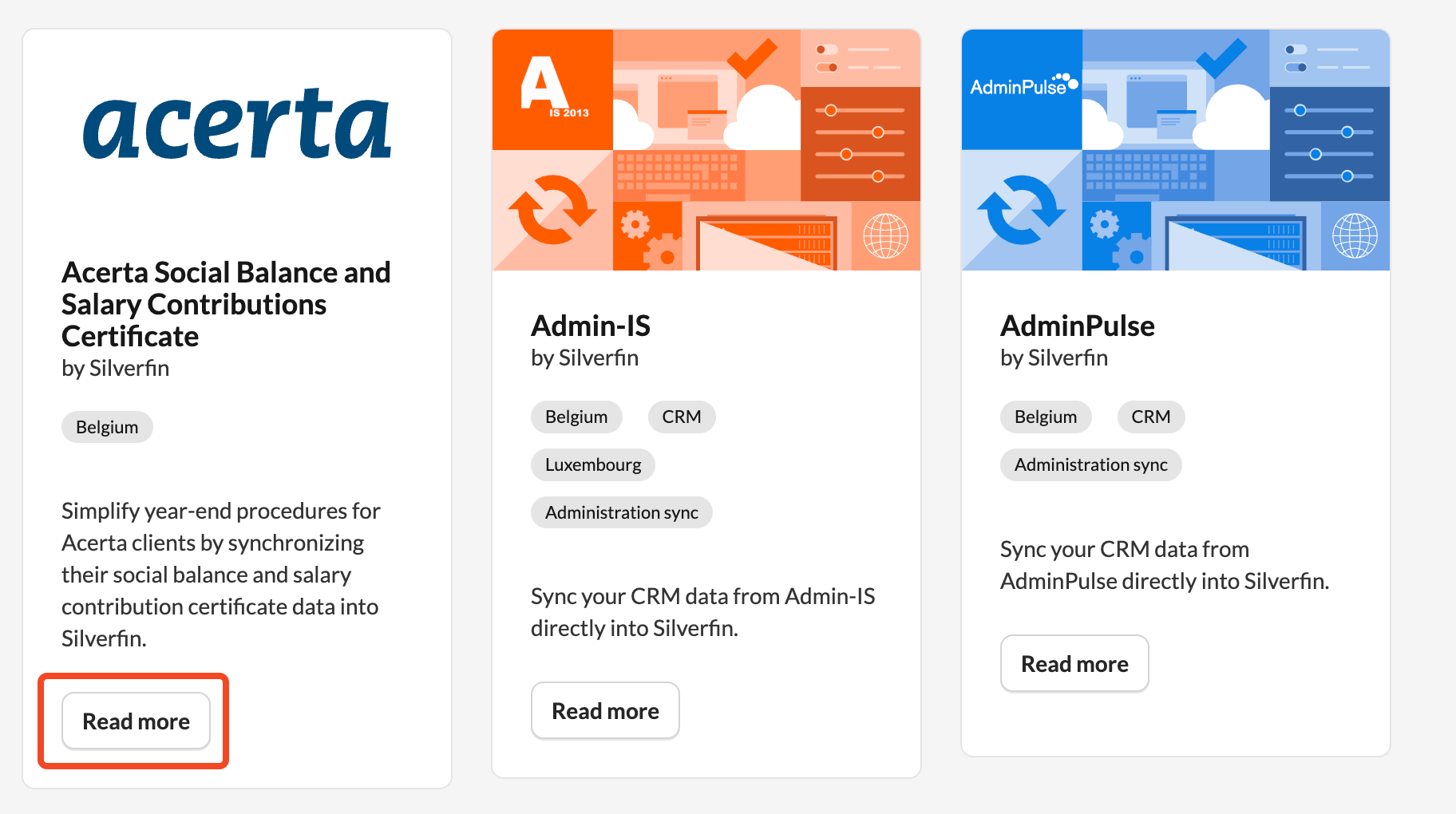
- Search for Acerta and click on 'Read more'.
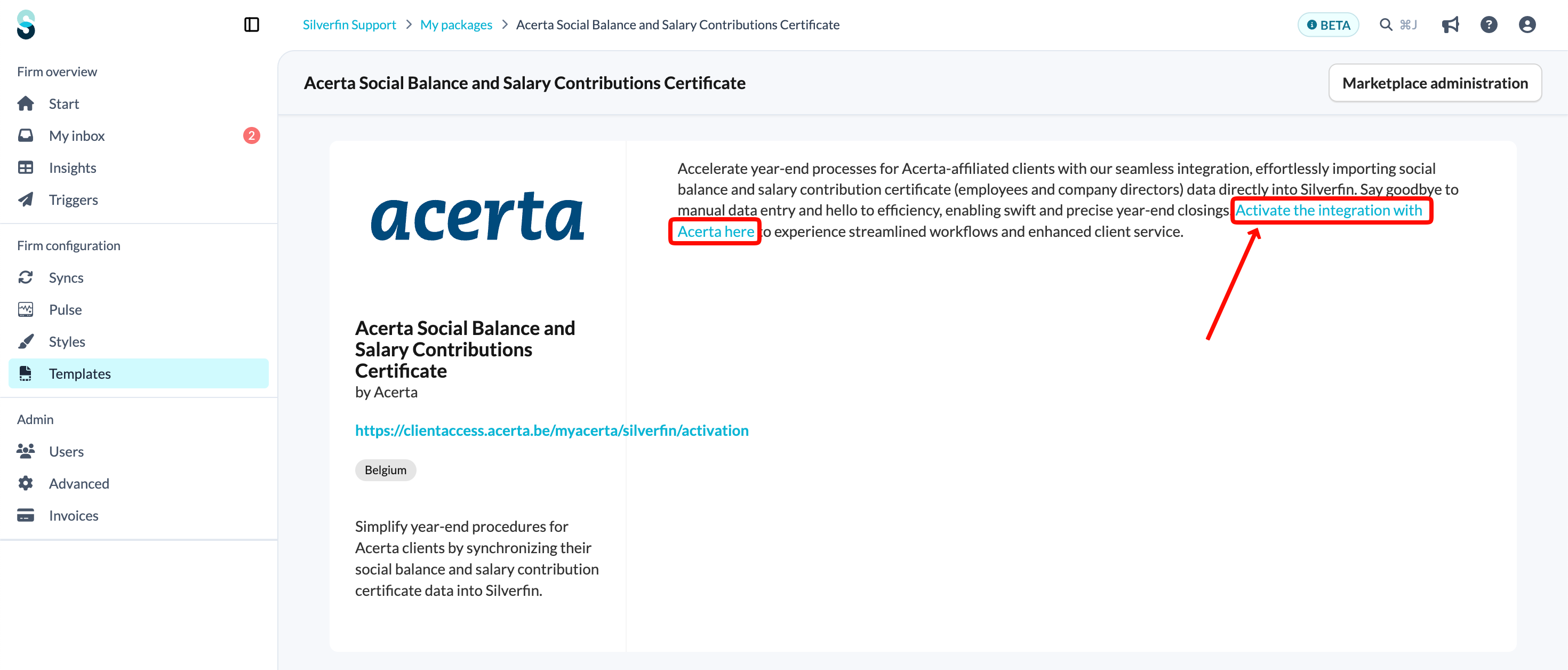
- Click on the activation link for Acerta.
- Log in on the Acerta login page.
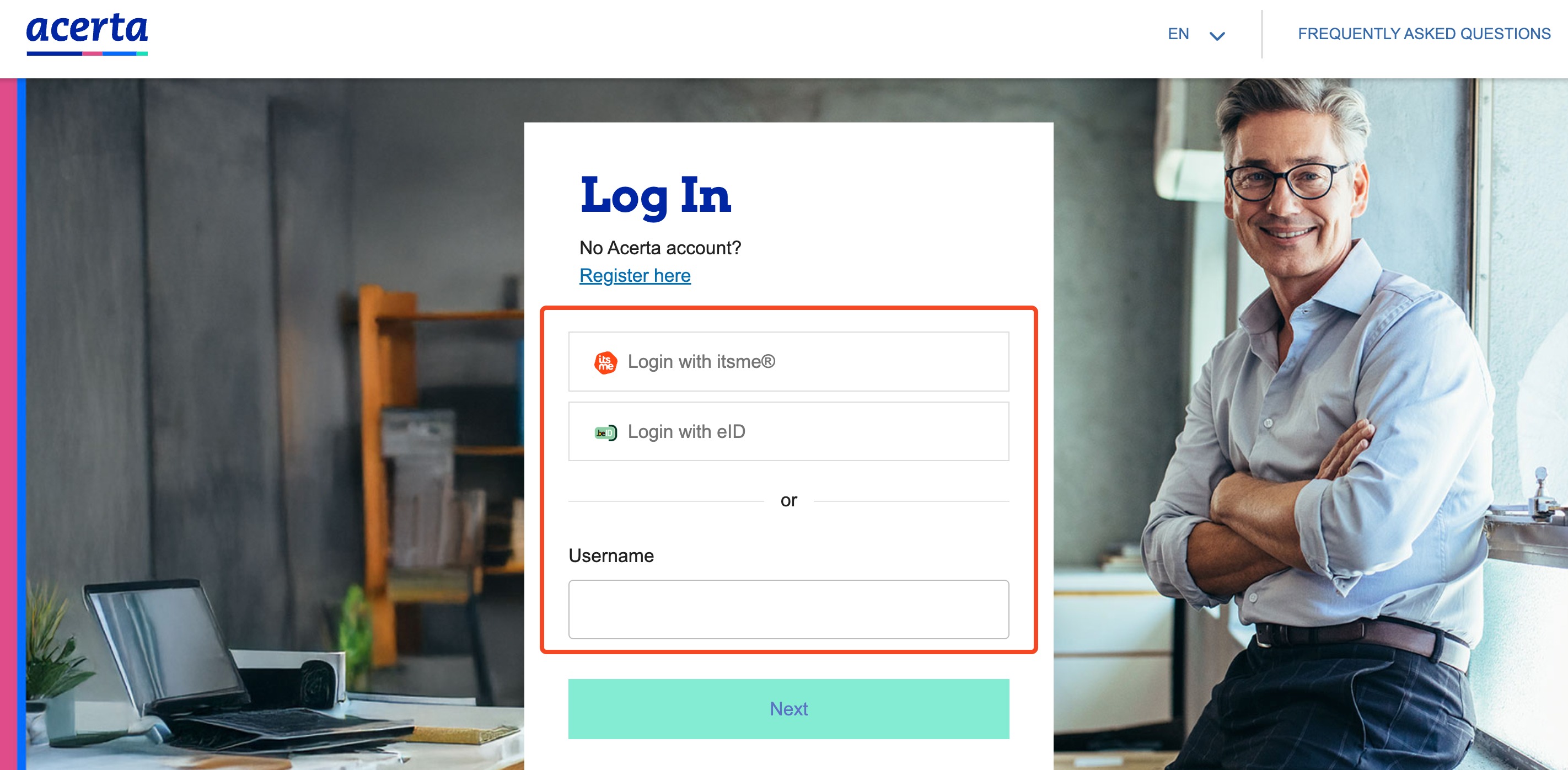
- The connection is now established.
The Marketplace is available for users with admin rights.
Using the Integration with Acerta in Silverfin
Once the connection with Acerta is set up, you can effortlessly use the integration to retrieve data from Acerta in the following templates.
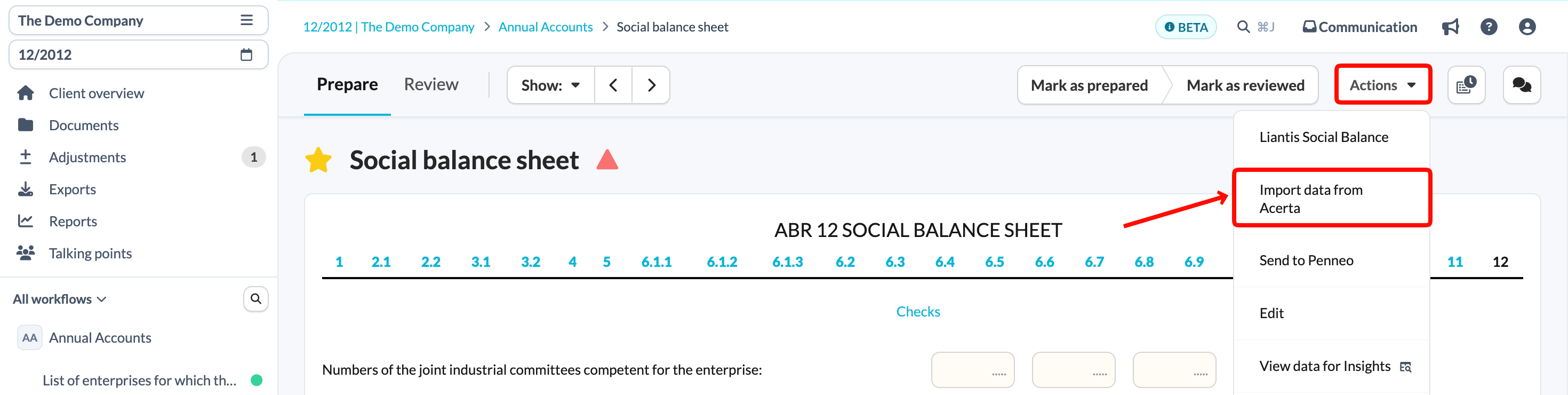
Social Balance Sheet
- Go to Annual Accounts workflow.
- Open the Social Balance Sheet template.
- Click Actions > Import Data from Acerta.
Justification remuneration employees
- Go to Working Papers workflow.
- Open the Justification Remuneration Employees template.
- Click Actions > Import Data from Acerta.
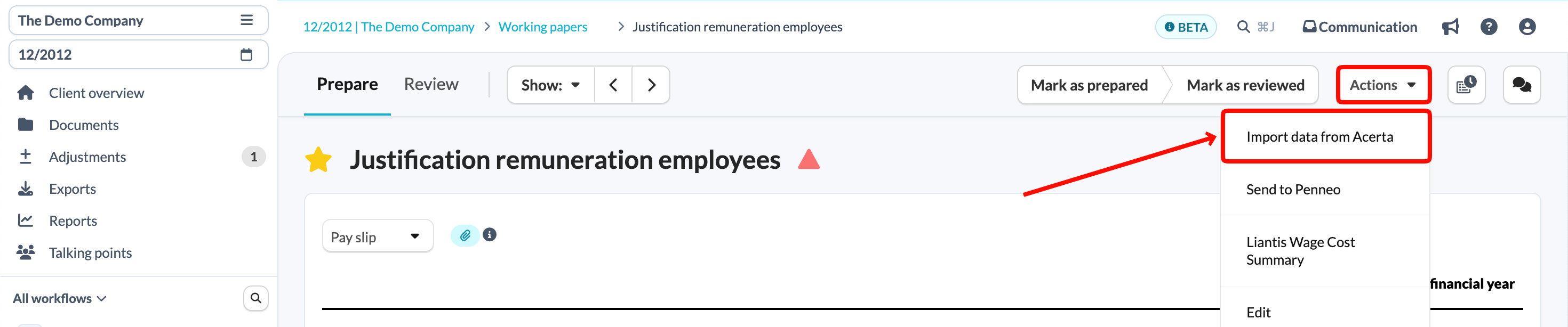
- Select 'Pay slip' from the dropdown menu.
Payroll statements for a broken financial year may show incorrect dates.Justification remuneration directors
- Go to Working Papers workflow.
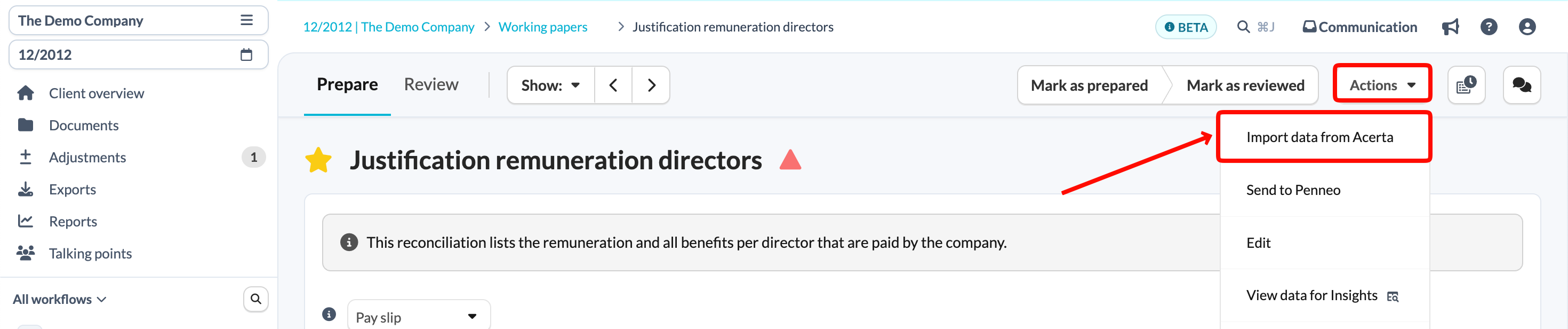
- Open the Justification Remuneration Directors template.
- Click Actions > Import Data from Acerta.
Benefits in Kind (BIK)
- Go to the Working Papers workflow.
- Open the Benefits in Kind template.
- Click Actions > Show data from Acerta.
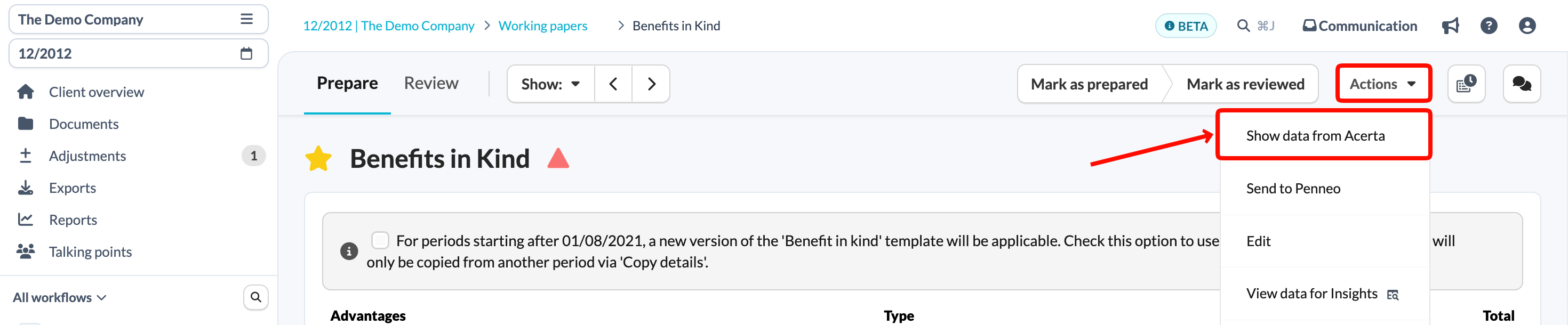
- Download the PDF using the paperclip icon in Additional Explanation.

Why are multiple Acerta options visible in a template?
Seeing more than one Acerta option means that multiple colleagues in your firm have activated the integration.
Which option should you select?
- You can select any of the available options.
- The data displayed depends entirely on the specific Acerta account you are currently logged into, not on which integration option you click.
For additional questions or technical support regarding the integration between Acerta and Silverfin, please contact Acerta Support.