
| User roles |  Admin Admin |  Staff Staff | ✗ External contributor | ✗ Pulse user |
The disallowed expenses are part of the "Corporate Tax" workflow, in both basic and full modules. There are two ways to calculate disallowed expenses.
Table of contents
- Directly in the template "Disallowed expenses"
- Calculation via the reconciliations of individual accounts with the account template "Disallowed expenses"
Directly in the template "Disallowed expenses"
The first way to calculate disallowed expenses is by assigning the accounts with the amounts to be disallowed directly via # to the correct categories in the template "Disallowed expenses".
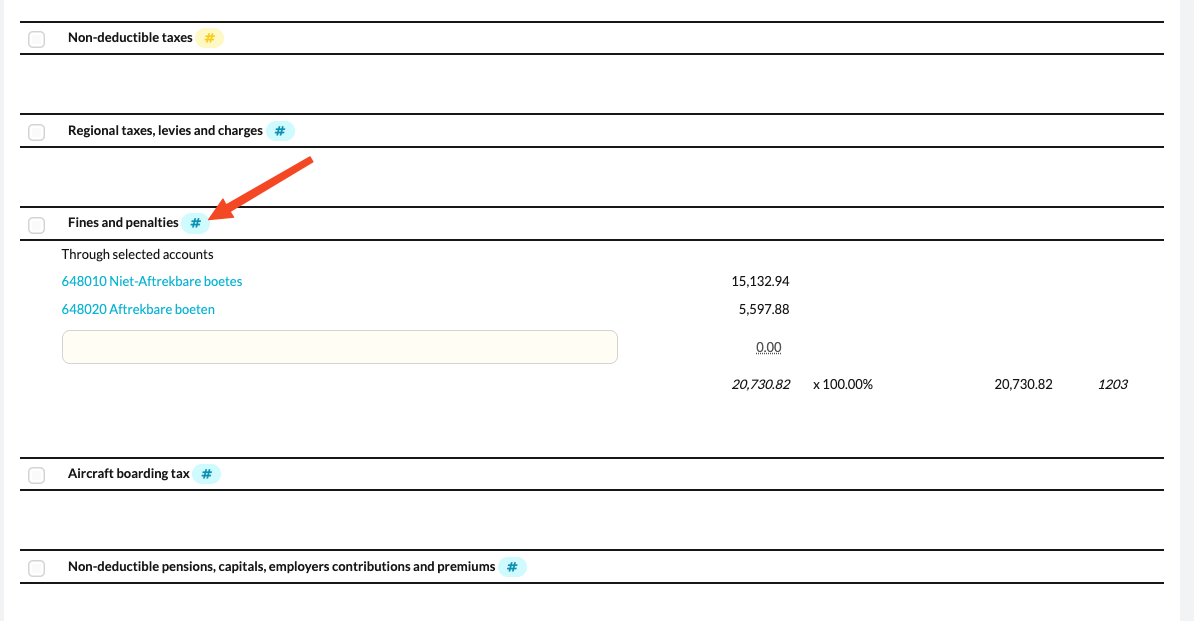
There is one exception: the categories related to the calculation of disallowed expenses for car costs cannot be entered directly in the "Disallowed expenses" template, but must be entered via the separate template "Car costs (disallowed expenses)". The calculated amounts from this template are automatically transferred to the "Disallowed expenses" template.
For that reason, you will see a blue line in the "Disallowed expenses" template at the categories related to car costs. When you click on this blue line, you are automatically redirected to the "Car costs (disallowed expenses)" template, where you can complete the details further.From the second year onwards, you can make use of the "Copy data" function so you don’t have to reassign the accounts every year. You only need to check whether there are any additional accounts in the new year that still need to be linked to a category.If your office works with a uniform chart of accounts, the admin user can set at office level that certain accounts are automatically linked to the # of a specific category. This can be applied to all categories, or limited to a selection—for example, only the "67" accounts for non-deductible taxes.
Calculation via the reconciliations of individual accounts with the account template "Disallowed expenses"
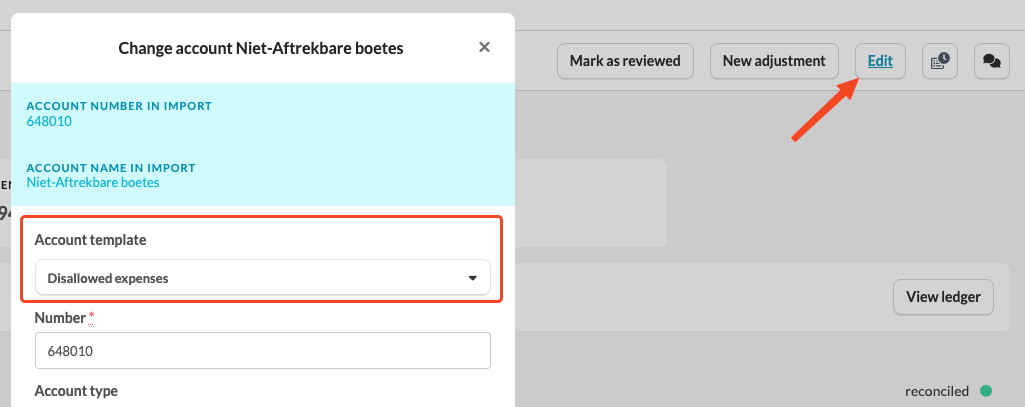
A second way to enter and calculate disallowed expenses is by using the account template "Disallowed expenses," which you link to individual accounts within the working file.
For an individual account, click "Edit", after which you can select the correct account template.
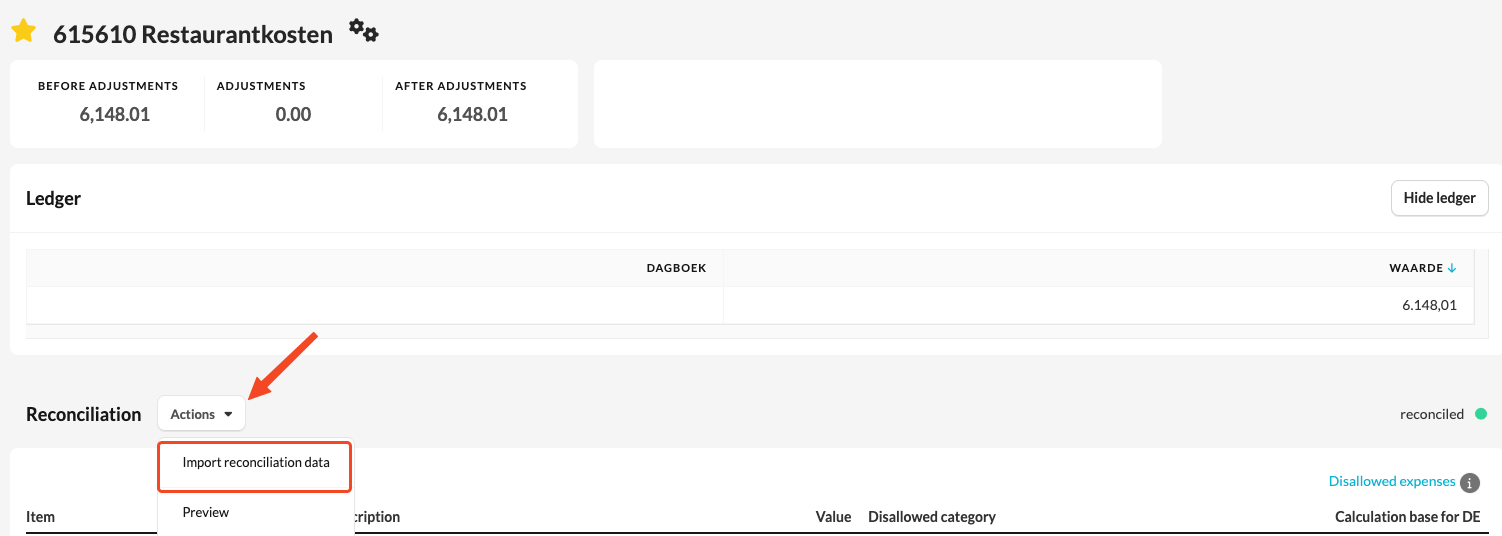
Automatically import general ledger entries
You can automatically import the individual entries of the general ledger into the reconciliations via "Actions" > "Import reconciliation data".
After that, you can indicate for each entry to which category of disallowed expenses the amount belongs.
This template therefore allows you to manually allocate amounts on a single account (that relate to different types of disallowed expenses) to the correct category.
Note: In these reconciliations, no calculation of disallowed expenses is made yet. Here, you only indicate which amount belongs under which category. If an amount does not belong to a specific category, you may leave the "Category" field empty.
Transfer to the notes "Disallowed expenses"
Once you have processed all relevant accounts in this way, the linked amounts are automatically transferred to the "Disallowed expenses" template in the workflow "Corporate Income Tax."The actual calculation of disallowed expenses then takes place there, based on the assigned categories.
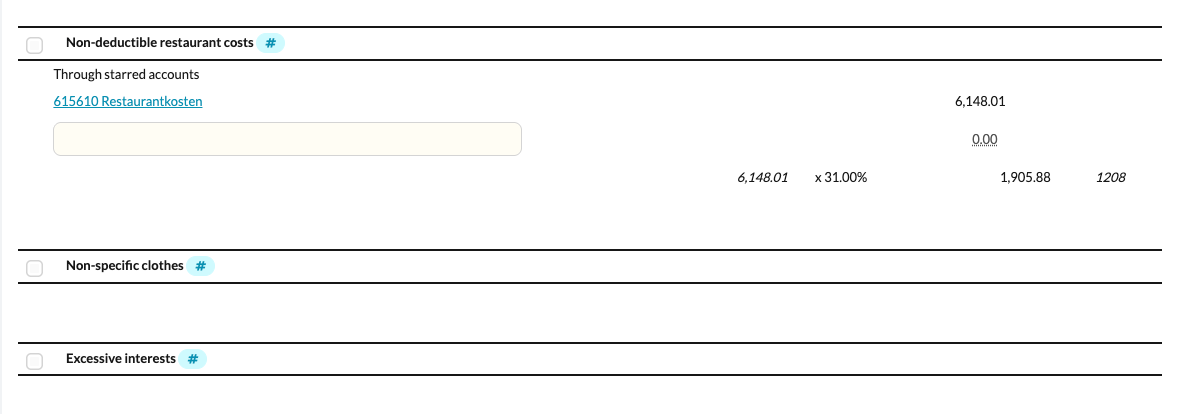
Important: don’t forget the star!
Make sure you assign a star to the account. If an account is not “starred,” the linked amounts will not be transferred to the reconciliation "Disallowed expenses."