
| User Roles |  Staff contributor Staff contributor |  External contributor External contributor | ✗Pulse user |
This article explains how to use the Account Assigning screen in consolidation files. You will learn how to reassign accounts from individual client files, identify potential mismatches, and control how accounts are assigned within your consolidation.
Table of contents
- Good to know
- What is the Account Assigning screen?
- How to navigate the Account Assigning screen
- How to re-assign an account
- Accessing the Account Assigning screen
Good to know
- All client files included in the consolidation must use the same mapping list.
- The Account Assigning screen is available for consolidation files that consolidate on mapped account numbers.
- Every new consolidation file consolidates by default on mapped account numbers.
- Files that consolidate on the original account number will have no access to account assigning.
What is the Account Assigning screen?
- The Account Assigning screen allows you to control how accounts from individual client files are assigned in the consolidation file.
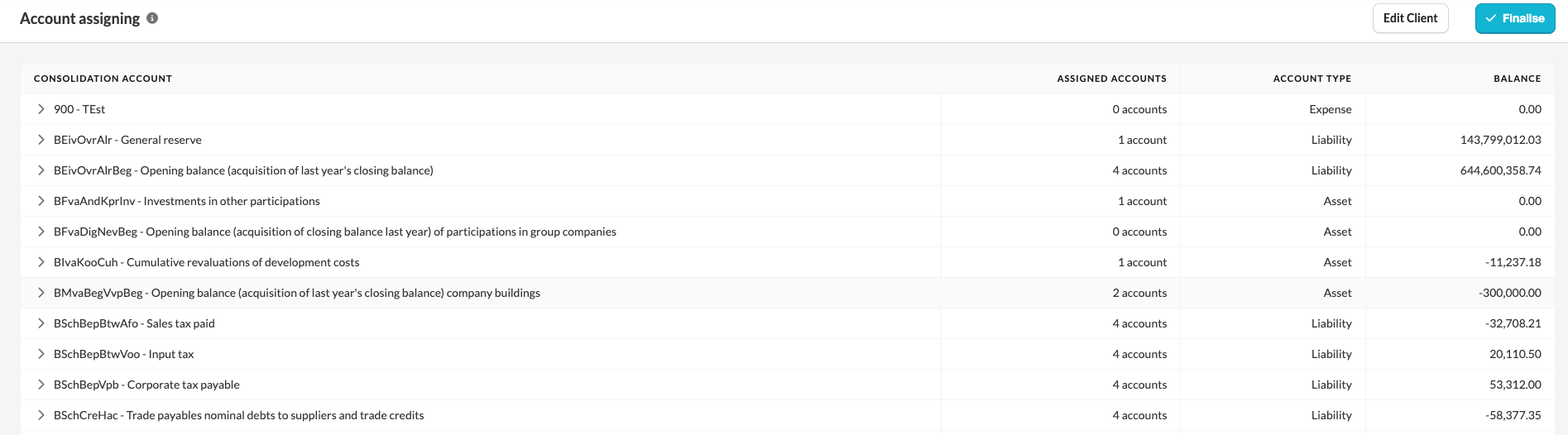
- On the Account Assigning screen, you can reassign accounts from individual client files to different consolidation accounts. By default, consolidation account mapping is applied automatically based on the mapped account numbers from the individual files.
Note: To change the account mapping, update the mapping in the individual client file and resynchronise the consolidation file.
How to navigate the Account Assigning screen
Individual client file
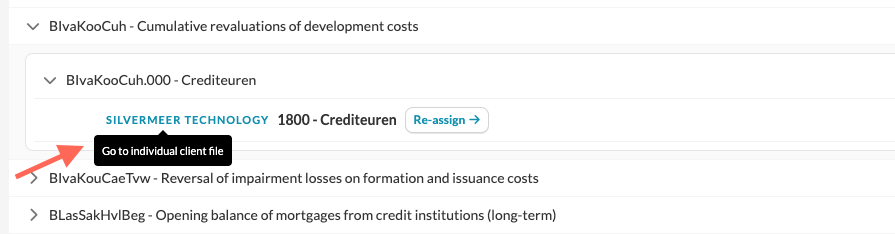
- This shows from which individual client file the account comes from. You can click the file name to open the client file in a new tab.
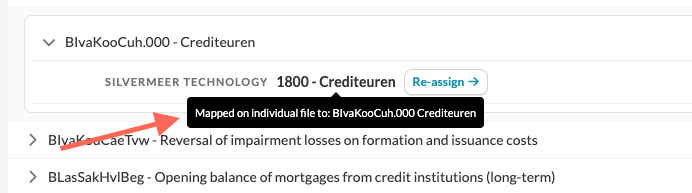
- You always see the original account number and name from the individual client file to provide context. When you hover over the account name, you can see to which suffix account is mapped to in the individual file.
Mapped account
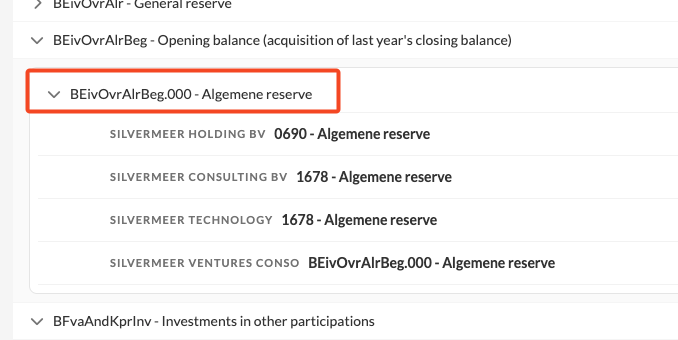
- This shows the mapped account in the consolidation file.
Potential mismatches
- You can move through all potential mismatches in the consolidation file.
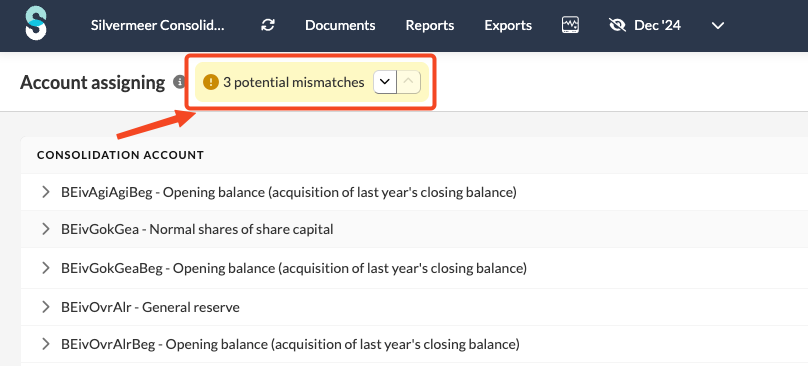 A potential mismatch occurs when the account name in an individual client file differs from the consolidation account name.
You can either:
- Mark the assignment as correct, if the consolidation setup is correct, or
- Reassign the account to a different suffix if it needs to be changed.
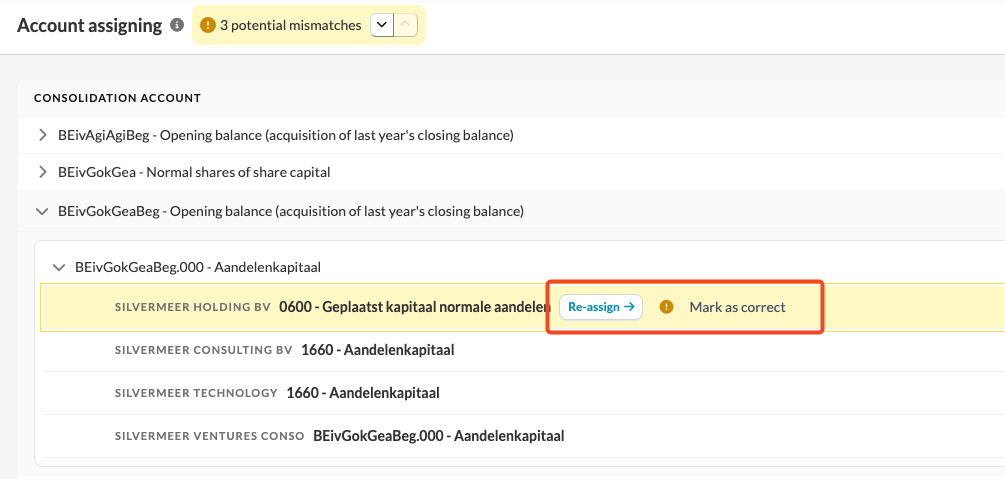
- Use the arrow to jump directly to the next potential mismatch.
- You can mark all potential mismatches as correct at once by clicking Finalise . This confirms the current assignments. You can change them at any time later via the Account Assignment screen.
How to re-assign an account
- Click Re-assign next to the account you want to update.
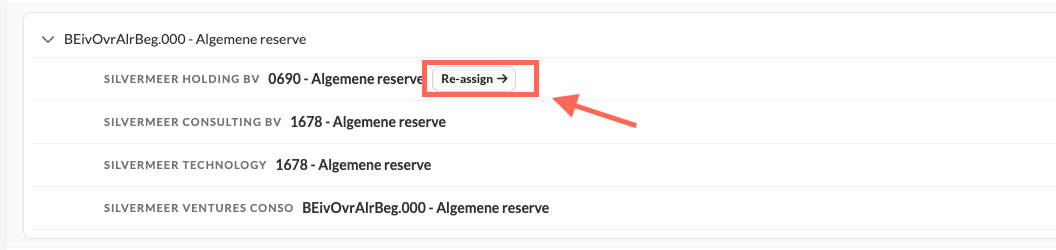
- You can assign the individual account to an existing suffix or create a new one, for example .001 or .002.
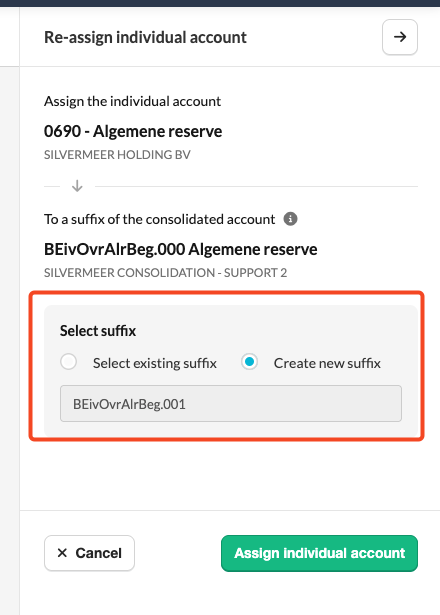
- Click Assign individual account to confirm the reassignment.
- To assign an account to a different mapped account, update the mapping in the individual client file and resynchronise the consolidation file.
Accessing the Account Assigning screen
The Account Assigning screen opens automatically when:
- Silverfin detects a potential mismatch
You can also open the Account assigning screen at any time by going to the Accounts tab and clicking Account assigning.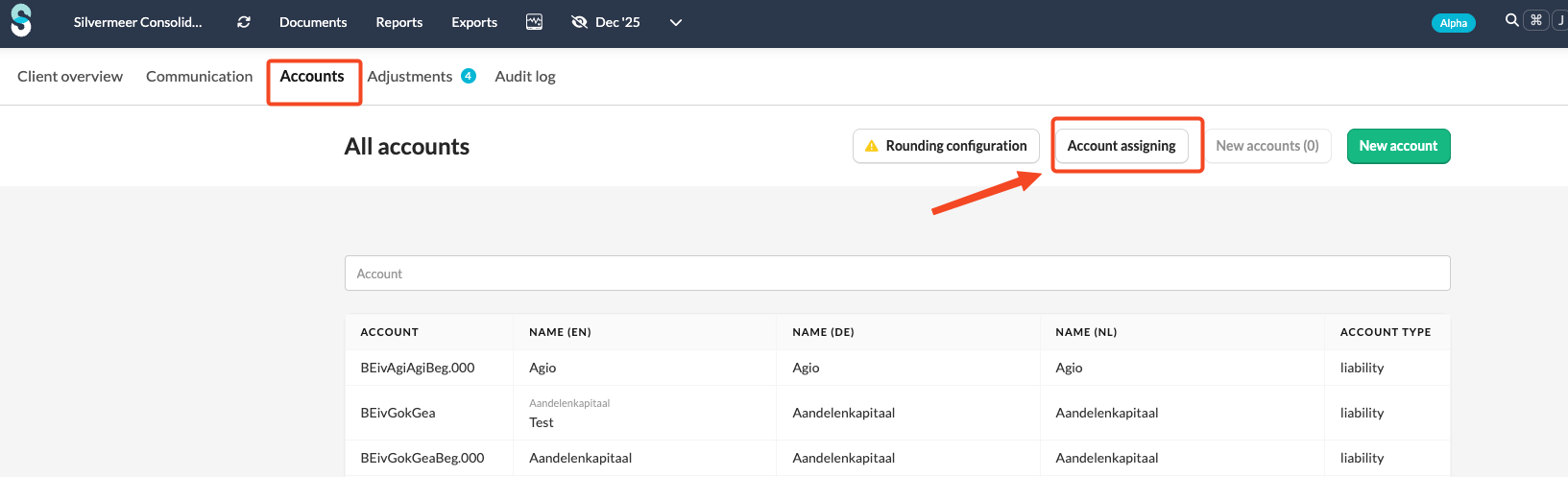
After reviewing and updating the account assignments, your consolidation file reflects the correct structure. You can return to this screen at any time if your data changes or if new mismatches are detected.