
| User Roles |  Admin Admin |  Staff contributor Staff contributor | ✗External contributor | ✗Pulse user |
Silverfin's audit log records the significant actions and changes made within a file, so you can always see who did what, and when. This article explains where to find the audit log at each level, what it captures, and whether you can download it. It's relevant for anyone reviewing file activity for compliance, security, or change-tracking purposes.
Table of contents
- What is Silverfin's audit log?
- How do I view the audit log at file level?
- How do I view the audit log at template or account level?
- How do I view the audit log in the workflow review screen?
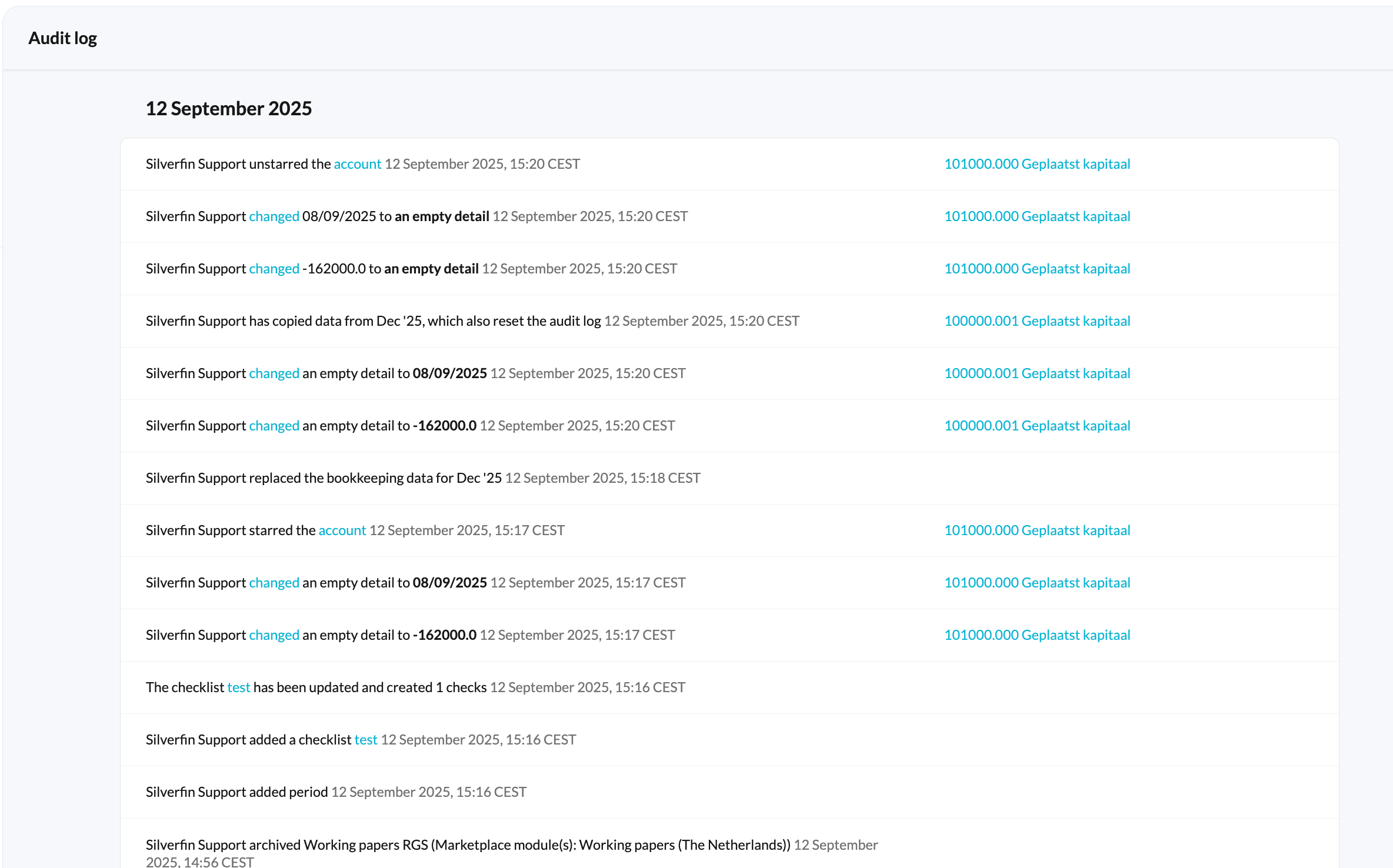
- What does the audit log show?
- How is the audit log displayed at each level?
- Can I download the audit log?
What is Silverfin's audit log?
When you collaborate with colleagues on a file, three questions come up again and again:
- Who made a change?
- What was changed?
- When did it happen?
The audit log answers all three. It provides a detailed history of the significant actions and changes within a file, making it a valuable tool for compliance, security, and tracking exactly what has changed.
The audit log is available at three levels - file, template or account, and the workflow review screen - and works the same way at each. It is available to Admin and internal staff users, and is not visible to external contributors or Pulse users.
The audit log only records changes made within Silverfin. Data brought in through a synchronisation or manual upload originates outside the platform, so those changes are not logged.
How do I view the audit log at file level?
The file-level audit log gives you a complete overview of the activity across a client file. To open it:
- Open the client file.
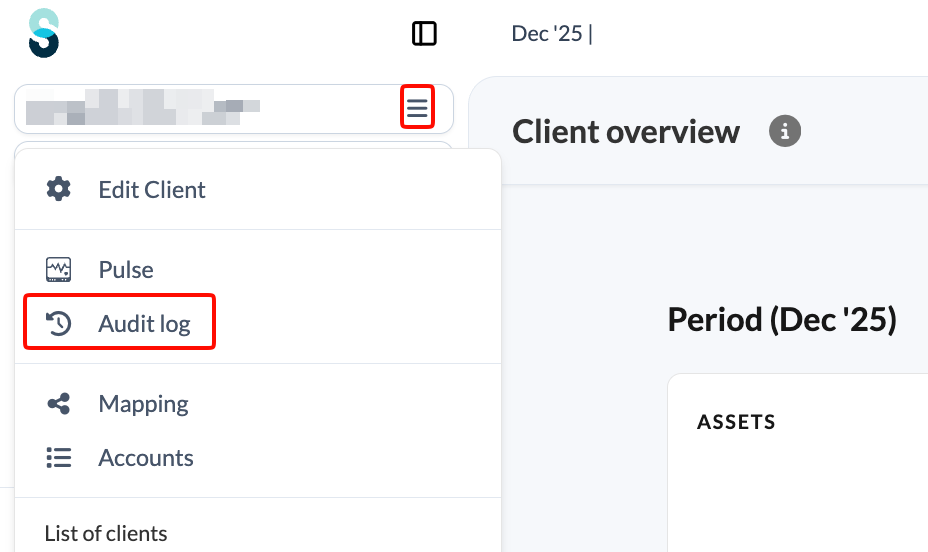
- Click through the left navigation panel on the dropdown next to the client name.
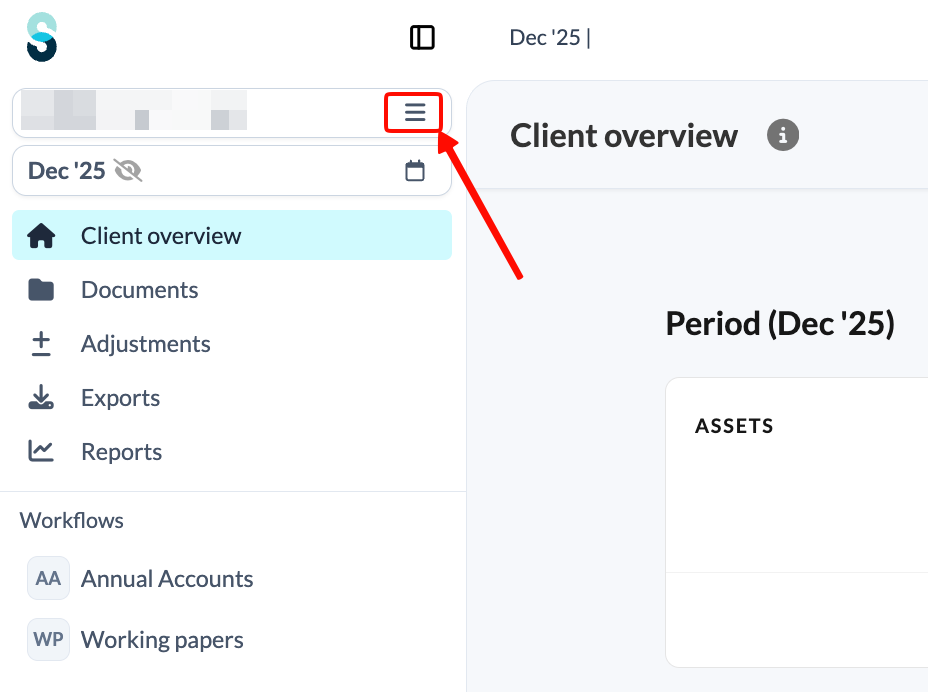
- Select Audit log.
Silverfin then shows an overview of the changes that affected the period you are viewing.
How do I view the audit log at template or account level?
For a narrower view, you can check the changes made within a single template, reconciliation, or account. To open it:
- Open the account or reconciliation you want to check.
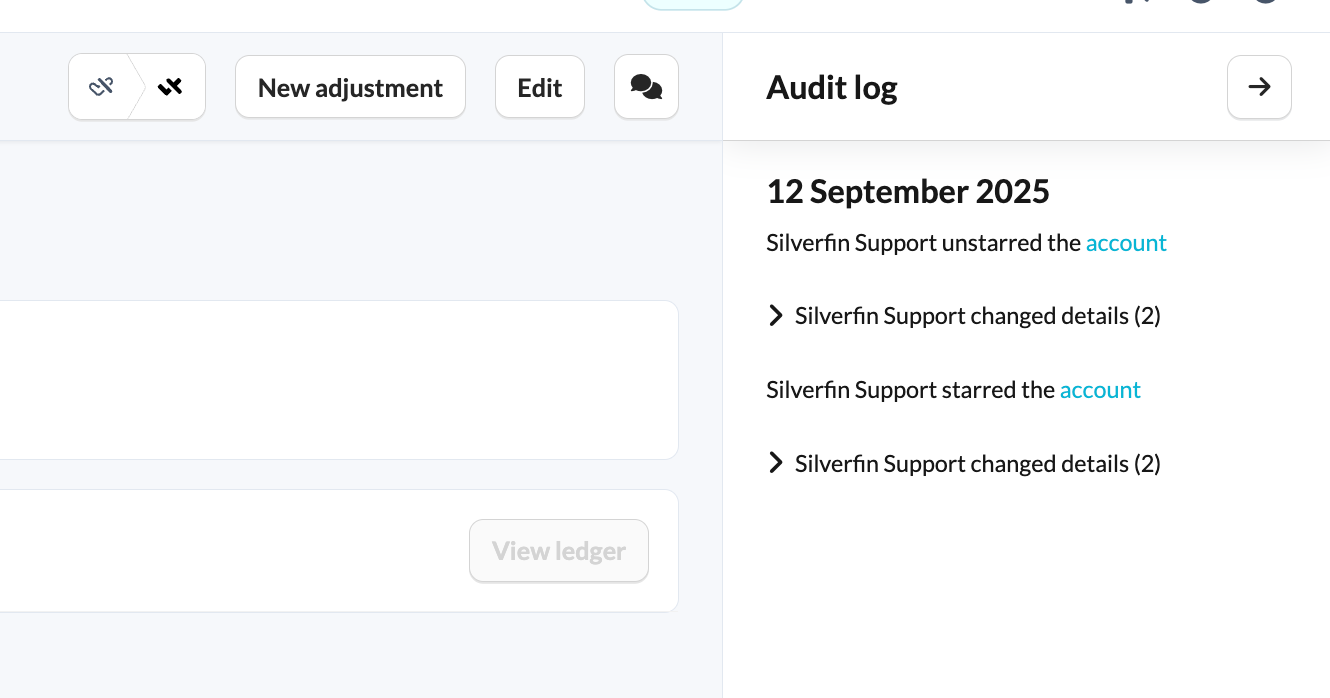
- Open the audit log from the top right of the screen.

- The changes then appear in a panel on the right-hand side of your screen.
How do I view the audit log in the workflow review screen?
You can also view the audit log directly in the workflow review screen. This lets reviewers see what has changed while reviewing a workflow, without opening the file or template log separately.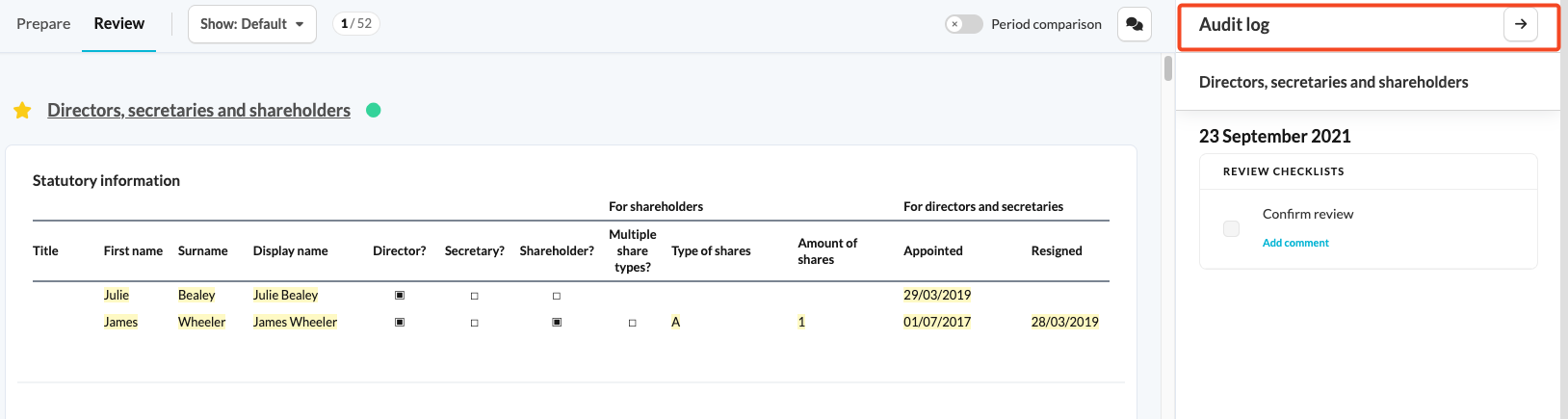
What does the audit log show?
The audit log captures a wide range of activity. The table below gives a few examples of what it records:
| Type of change | What the audit log records |
| To-dos and notes | When a to-do or note is added, updated, or marked as done. |
| Communication tags | When a tag is added or updated in communication. |
| Checklists | When a checklist is added or updated on the client file. |
| Starred items | When an account or reconciliation is starred or unstarred. |
| Template details | When a detail is changed, cleared, or filled in at template level. |
| Period status | When a period is locked or unlocked. |
Can I download the audit log?
Silverfin does not currently offer a way to download the audit log. You can review the logs per period within the interface, as described above, but only for the file or template you are viewing.