
| User Roles |  Admin Admin | ✗Staff contributor | ✗External contributor | ✗Pulse user |
Pulse is a communication platform that lets you engage your clients with their financial data and makes it easy for them to communicate with their accountant. This article shows you how, as an admin user, to use the default Pulse template or create a more personalised one.
Table of contents
- Where can I find a Pulse template?
- What types of Pulse template can I use?
- What can I set up inside a Pulse template?
- How does a Pulse user upload a document?
Where can I find a Pulse template?
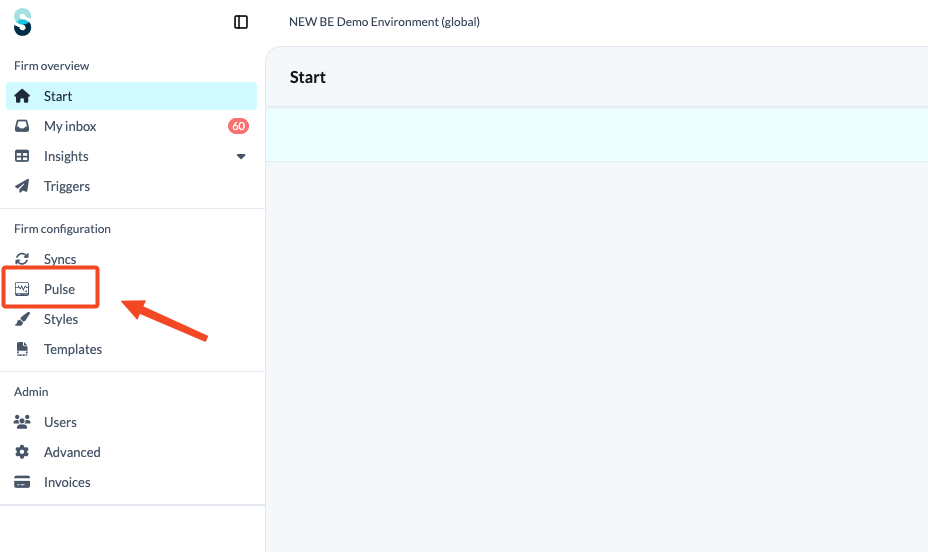
To access Pulse templates and configure their settings, click on the 'Pulse' tab at the firm level:
What types of Pulse template can I use?
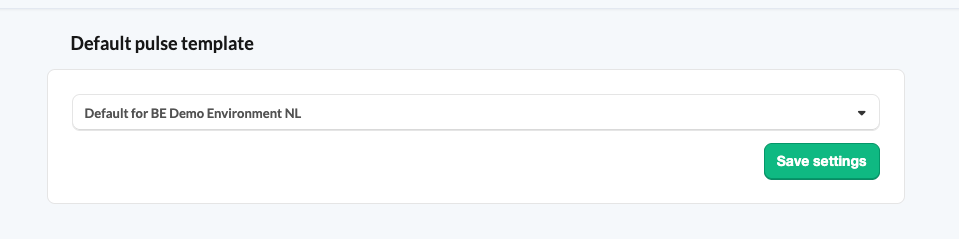
- Default template: There is an active 'default' template that is automatically selected when a new file is added to the environment. You can customise the default template at any time.
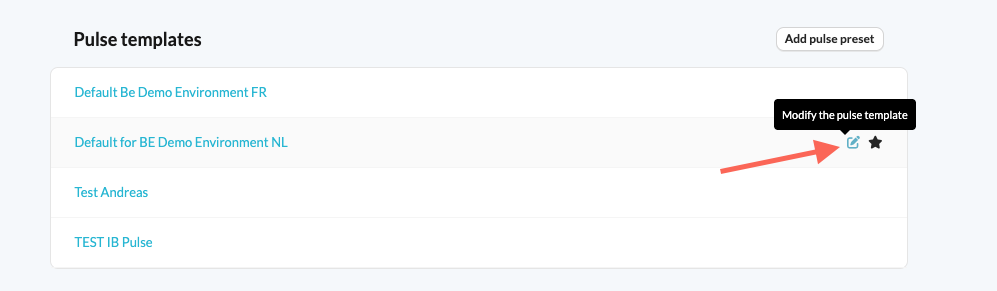
- Custom template: You can adjust existing templates or create new ones.
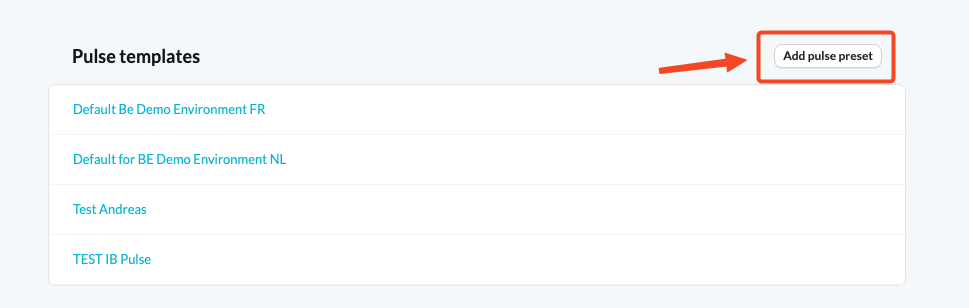
- To create a new Pulse template, click on 'Add pulse template'.
Choosing a different default template does not affect files using the previous template. Templates will not be automatically updated.
What can I set up inside a Pulse template?
Within a Pulse template, you can set up three blocks: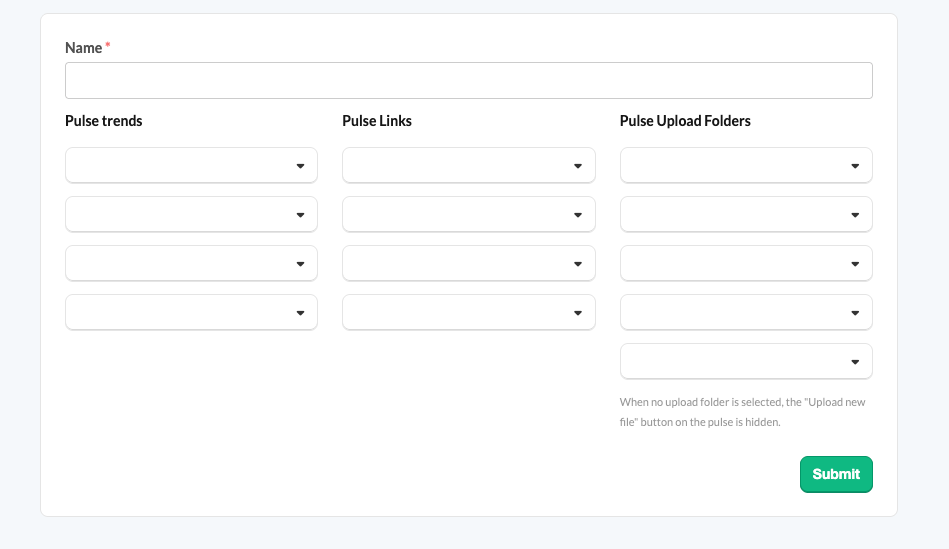
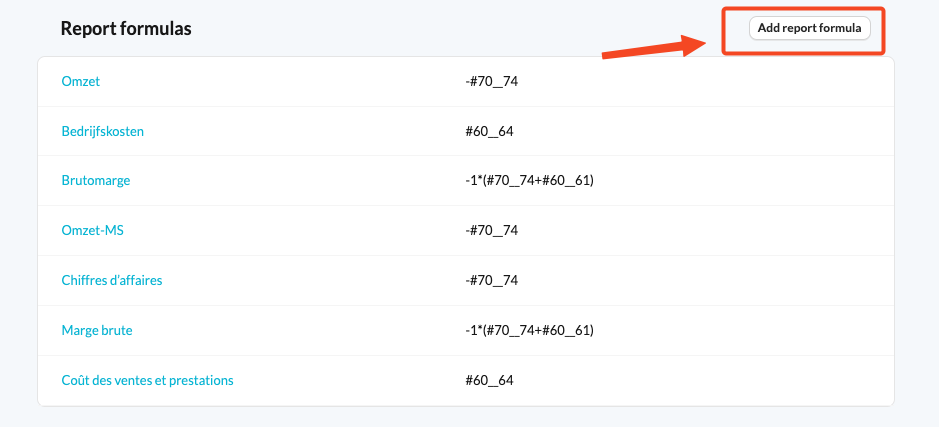
- Pulse trends (report formulas): Defining formulas works in the same way as in reports. You can create tags based on account ranges, e.g. #60__64 includes all accounts from 60 to 64. This allows you to show clients the results of specific calculations.
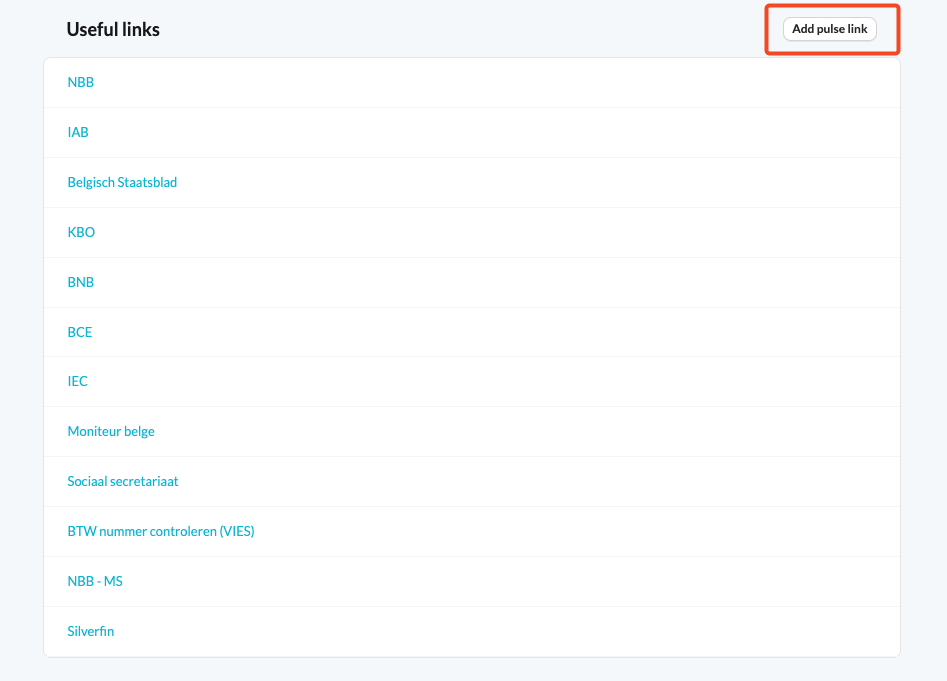
- Useful links: Add a list of links you want to share with your client. Set up useful links by entering the full URL.
- Pulse upload folders: You can determine the structure of the folders into which a client uploads their documents. If a client (Pulse user) decides to upload a document, they can easily select the correct folder.
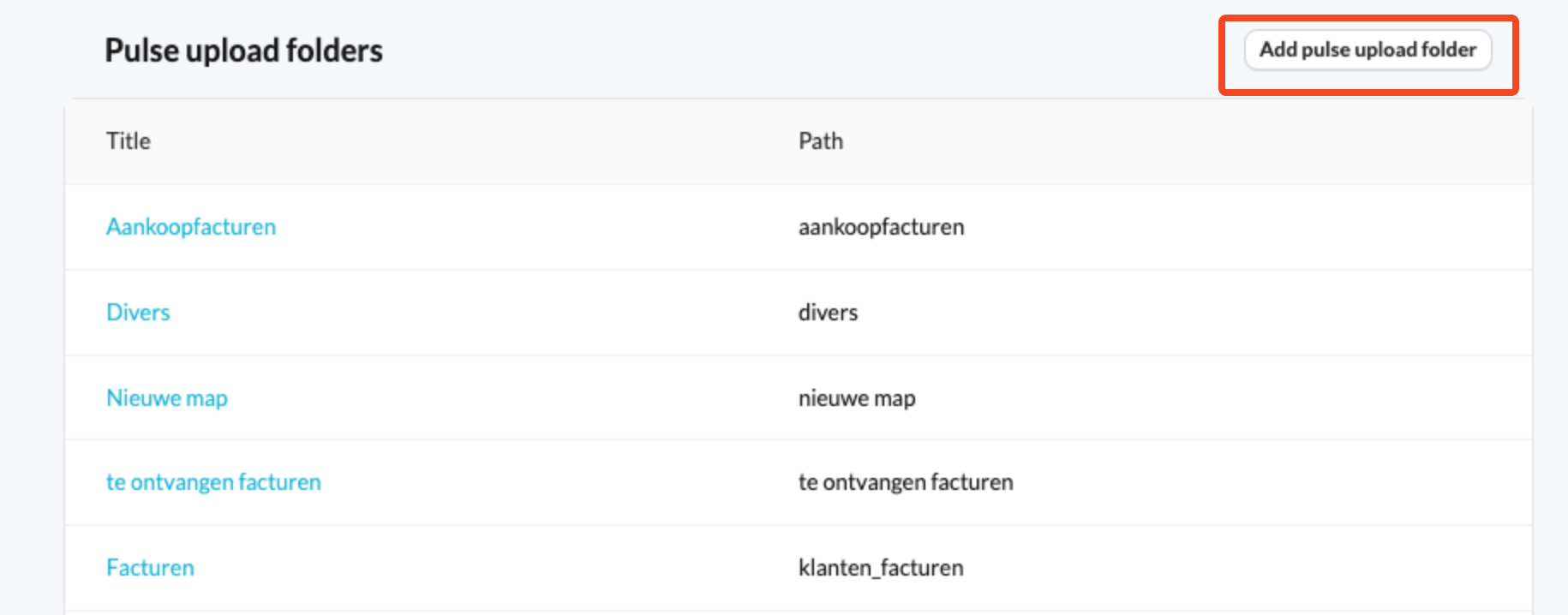
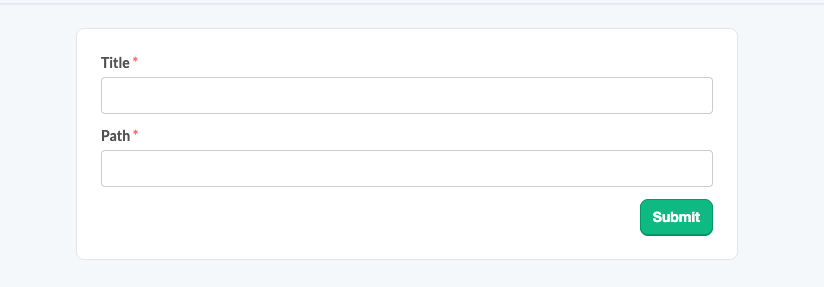
- Title: The name visible to users in Pulse.
- Path: The location where documents are stored within your folder structure. You can create multiple subfolders under 'Documents'. Use a '/' to reference a specific folder, e.g. subfolder 'sales_invoices' under the folder 'customer_upload'. Note that this is case-sensitive.
The destination folder does not need to exist beforehand. It will be automatically created when the Pulse user selects it while uploading the file.
How does a Pulse user upload a document?
When a Pulse user wants to add a document, they need to click on the 'Upload new file' button in the Pulse platform:
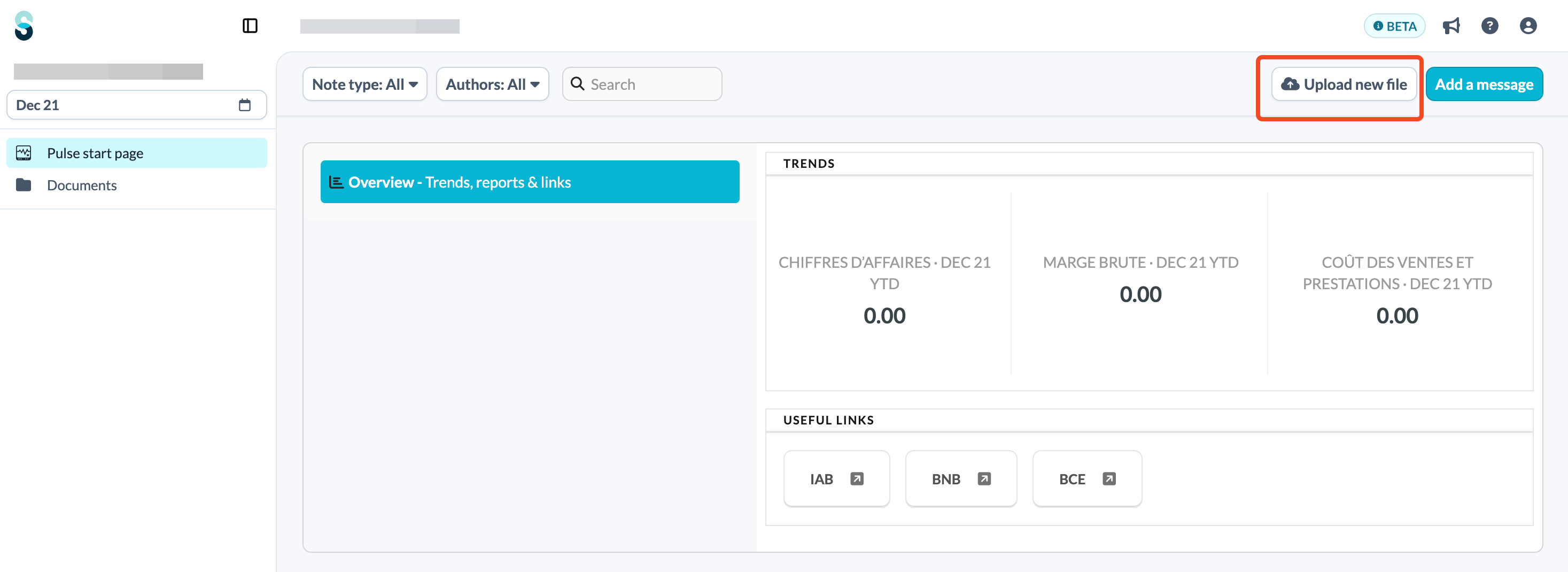
They will then be prompted to upload the document and choose a destination folder:
To allow Pulse users to access the documents they’ve uploaded, you must make the folder public in the file. See How to share documents with a Pulse user? for the steps.