
| User Roles |  Admin Admin |  Staff contributor Staff contributor |  External Contributor External Contributor | ✗Pulse user |
In Silverfin, preparing for client meetings is simple and efficient with the Talking Points feature. It helps you centralise all agenda items and meeting summaries in one place ensuring that your team stays aligned and no valuable information is lost.
This article explains how to use Talking Points in Silverfin to prepare, present and manage client meeting agendas.
Table of contents
Adding and managing Talking Points
Centralised Agenda
- The Talking Points screen serves as a single, shared location for all your meeting topics.
- Unlike personal inboxes, which may become inaccessible when someone leaves the company, this makes it easy for any team member to access the agenda and past meeting notes.
How to add Talking Points
There are two ways for Talking Points to appear in the Talking Points overview.
1. Use the ‘Add a message’ option
- Add a Note or To-do in a 'Talking points' tab.
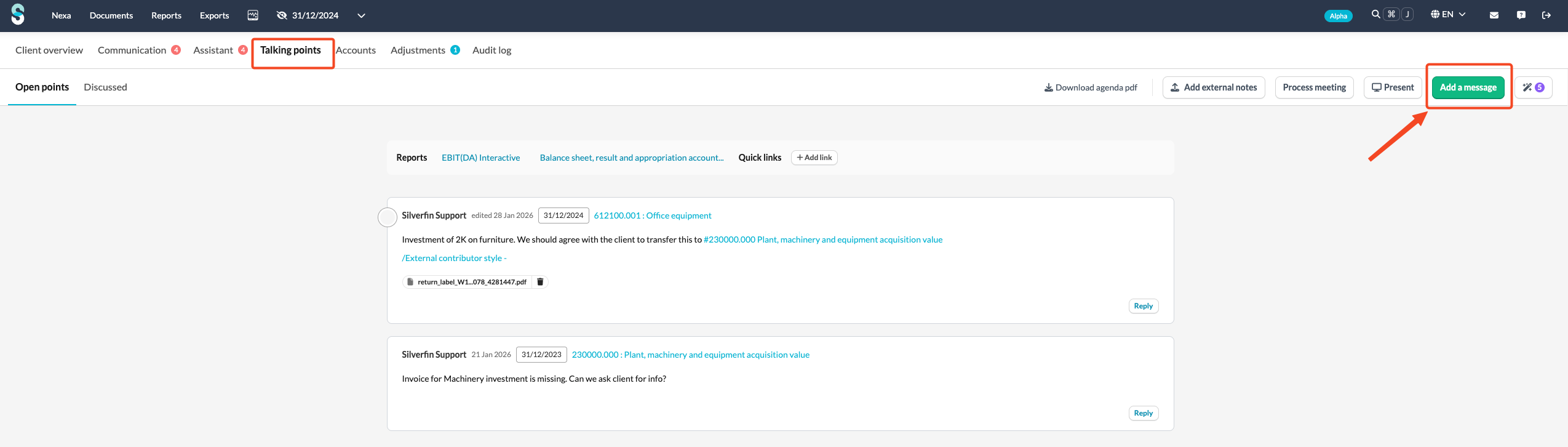
- The communication tag Talking Point is automatically added to your message.
2. Tag an existing note or To-do
- You can also manually add the Talking Point tag to an existing Note or To-do.
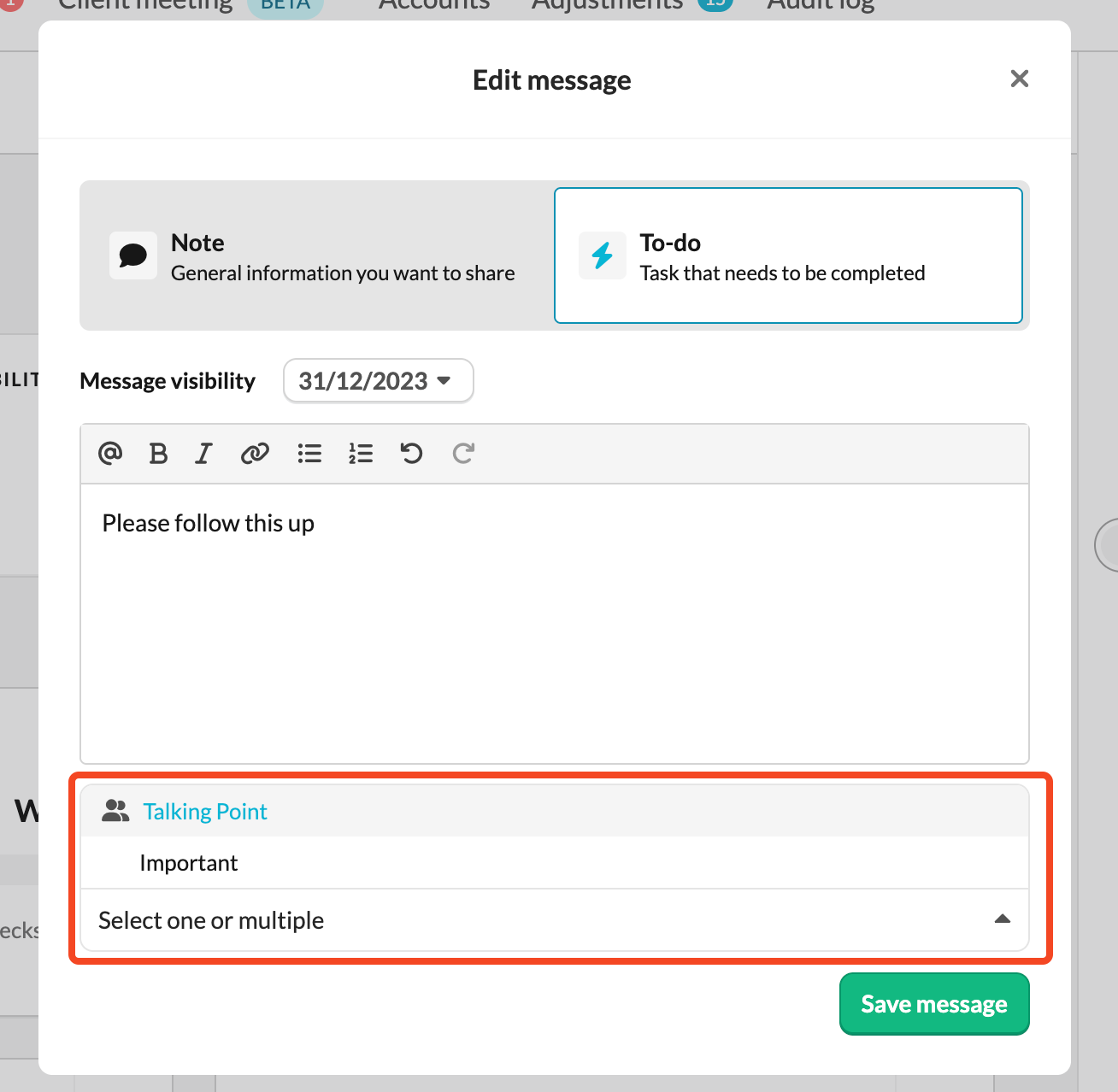
- Important: The Talking Point tag is available in every file. It’s automatically added at firm level, so there’s no need to create it yourself.
Once added or tagged, the Talking Point automatically appears on the Talking Points screen, where it becomes part of your meeting agenda.
Preparing for the Meeting
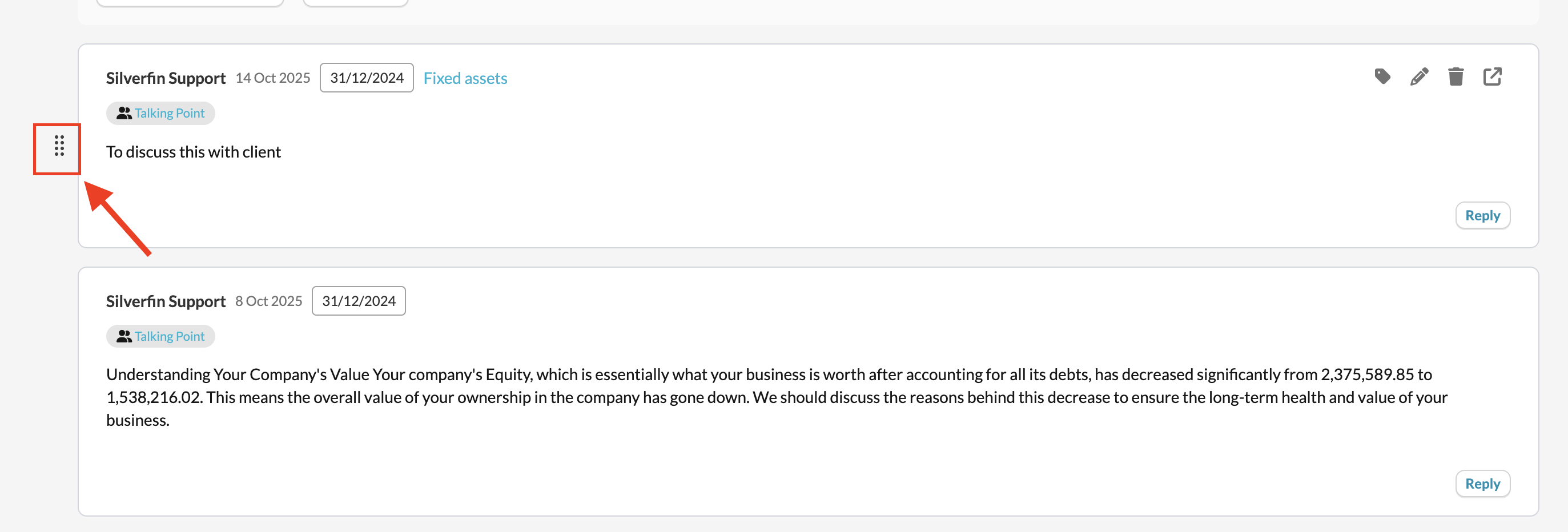
Arrange Agenda Items
- Once your Talking Points are listed, you can rearrange them in any order to match your planned discussion flow. Simply drag and drop agenda item to reposition it.
Add Supporting Documents
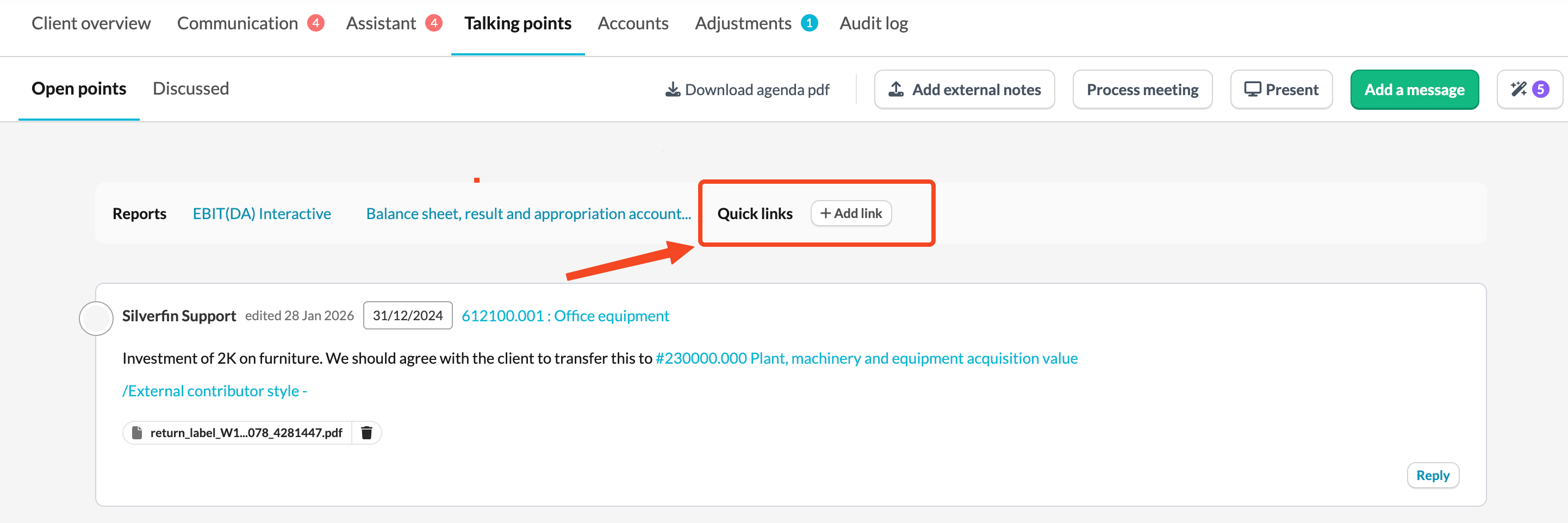
- You can include links to both internal and external resources directly within your agenda items. This is useful for referencing documents or other supporting material during your meeting.
- To add relevant external sources, click a button 'Add external notes'. After processing your file isn't kept, it's only used to enhance the meeting summary.

- To add a link, click the Add link button above your agenda items.
Reports
Reports appear automatically on the talking points page.
- If you use Silverfin reports, the relevant reports are shown automatically.
- If you created your own report and want to include it, you can enable this option in the firm settings of the report.
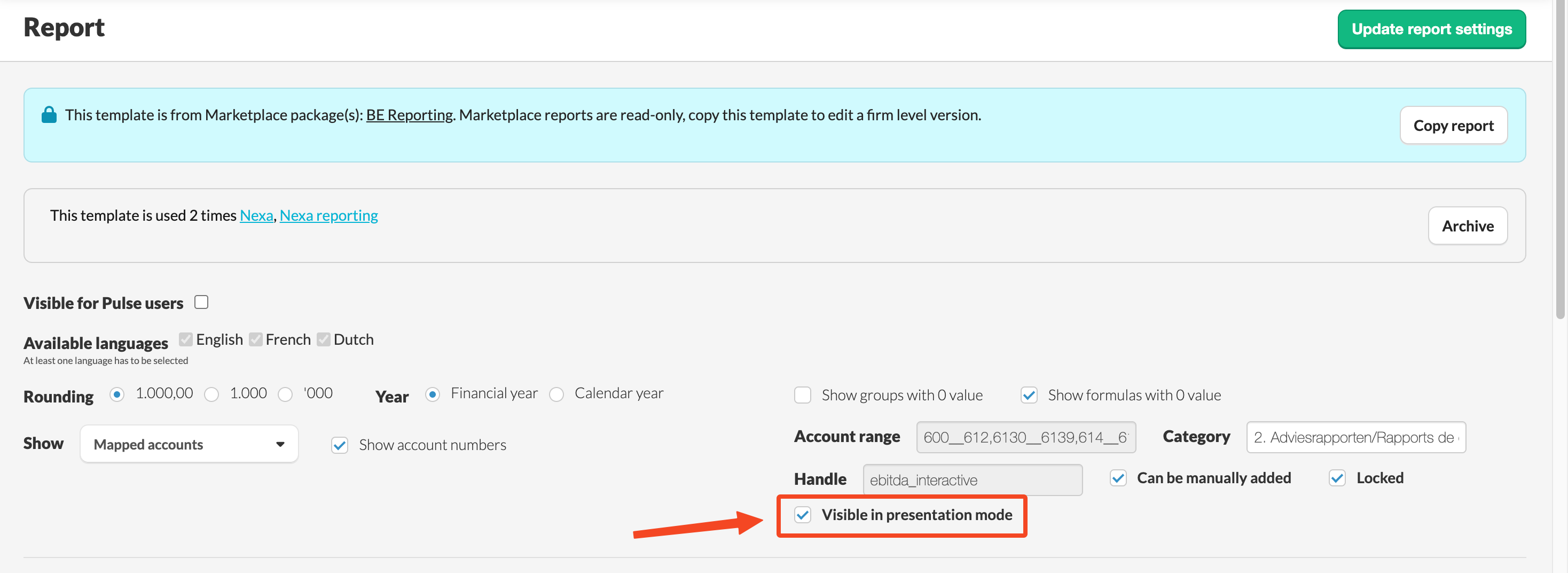
If you make a copy of an existing report within the client file, it cannot be included in Talking Points.
Download Agenda Points
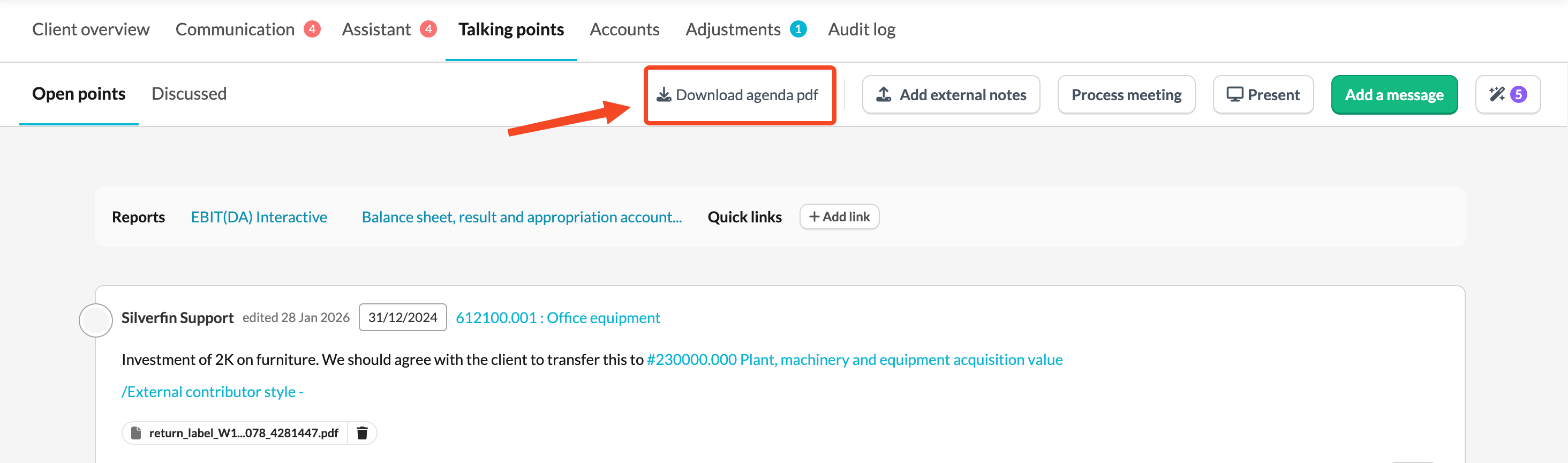
- You can download your agenda points as a PDF for easy sharing or record-keeping.
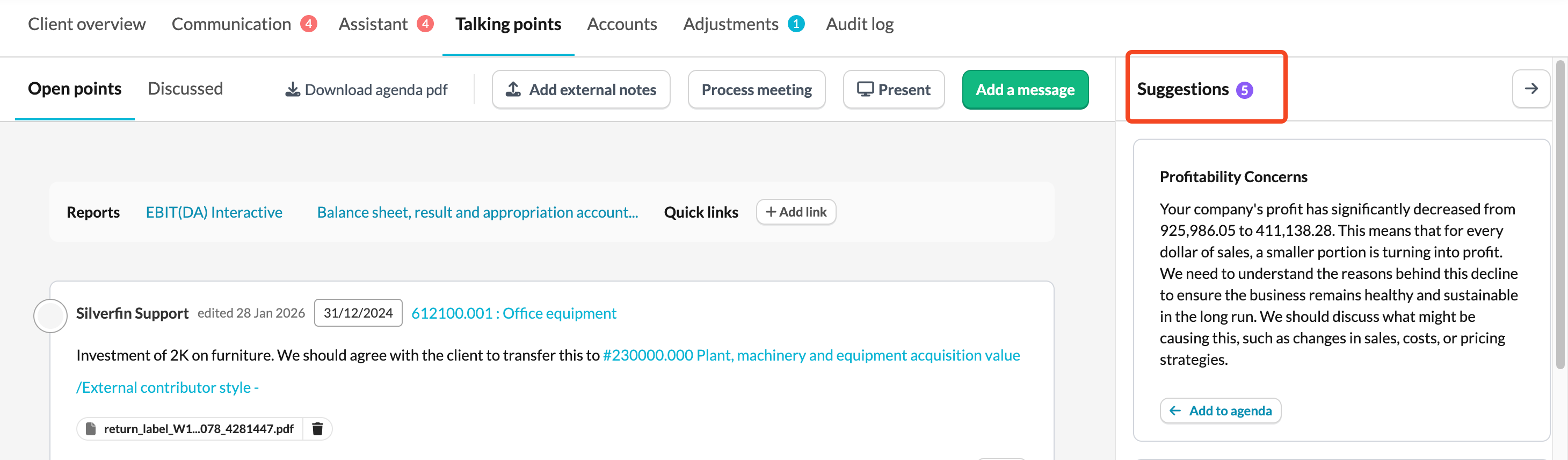
Use AI Suggestions
- The AI Assistant can suggest relevant Talking Points that you can review and add to your meeting agenda.
Presentation Mode
Presentation mode provides a clean and focused view of your agenda and data, so you can concentrate on the conversation with your client.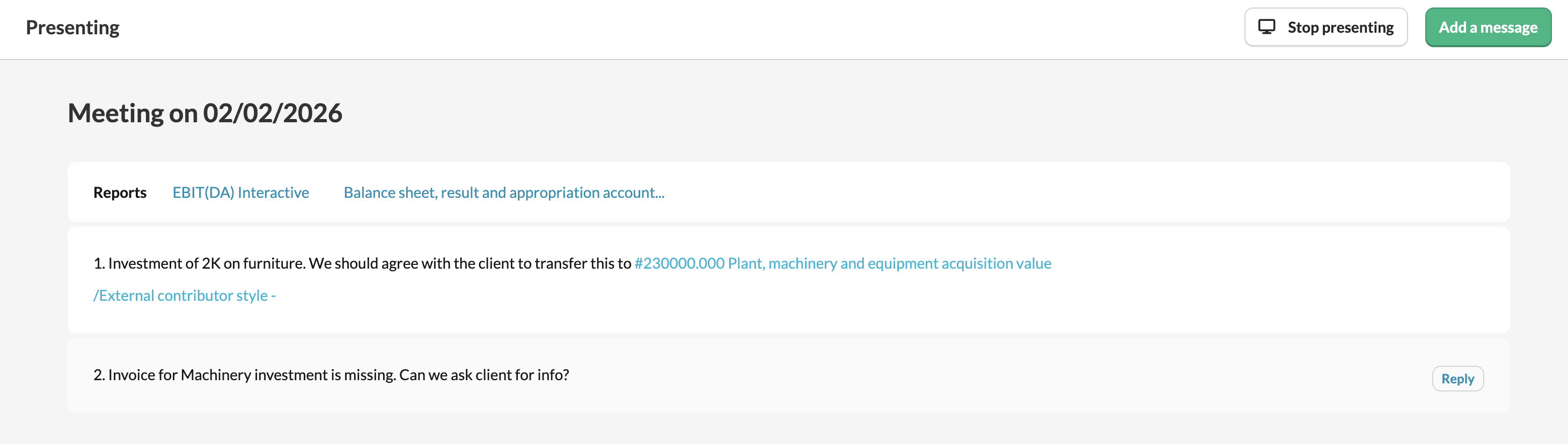
In presentation mode:
- All internal communication and working papers are automatically hidden. Only client relevant information is visible.
- You can take notes directly on the relevant Talking Point during the meeting, ensuring questions, decisions and follow ups are captured immediately. Simply click Reply within the Talking Point.
- Linked resources and added reports remain visible, so you can easily reference supporting material during the meeting.
This allows you to present with confidence while keeping the meeting structured and uninterrupted.
Completing the Meeting
- Once your meeting with a client is finished, click Process meeting.
- All talking points, your notes, and any added transcripts are automatically merged into one professional and structured report.

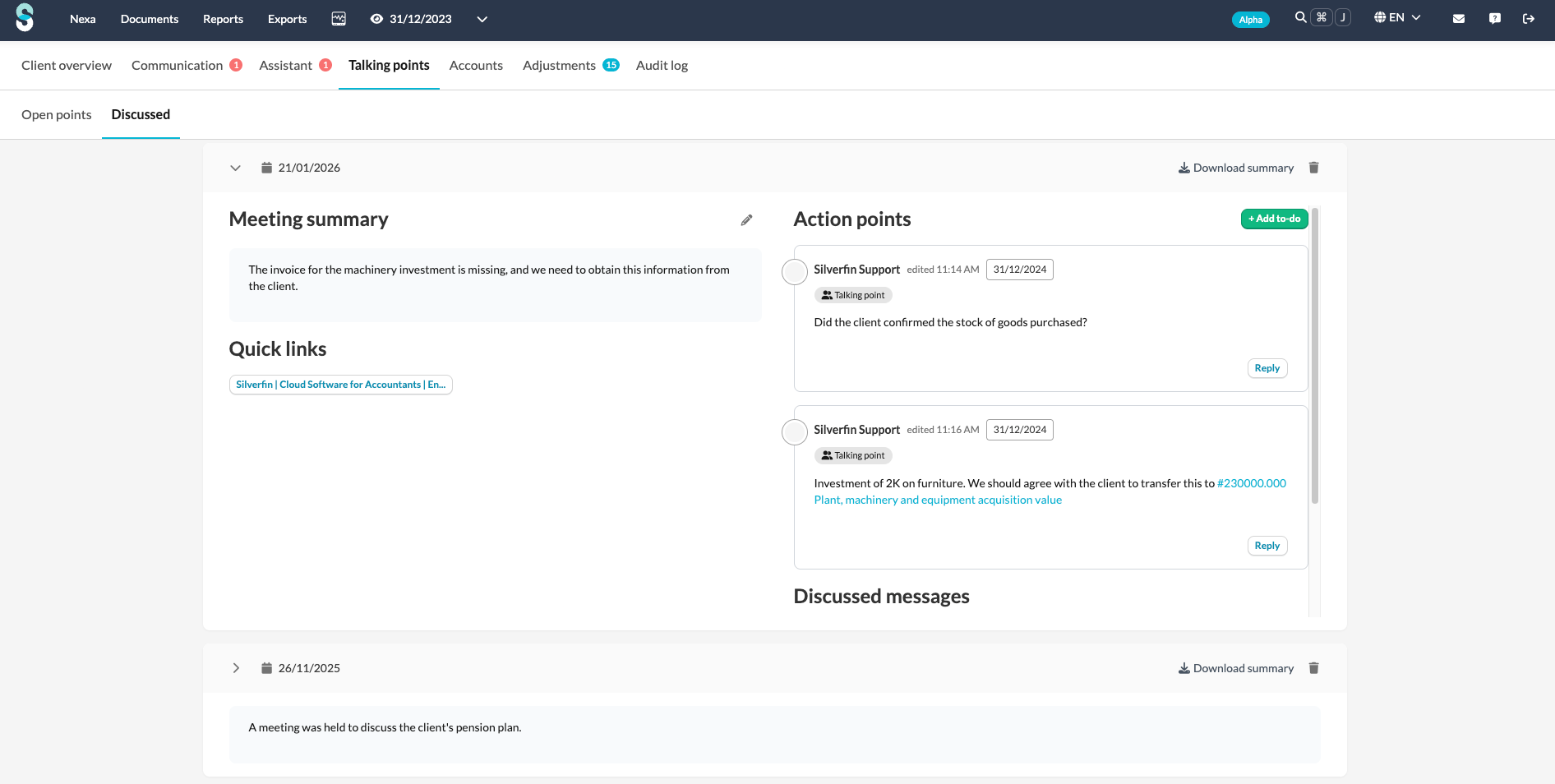
- After you process the meeting, it appears under the Discussed section of the Talking points tab. Silverfin automatically creates a clear overview of the meeting, making it easy to find details from past discussions and track follow-up actions.
In the Discussed section you can:
- Download or delete a summary at any time.
- Edit Meeting summary
- Open to-do's are marked as action points and remain clearly visible. The other messages are marked as discussed.
By using Talking Points in Silverfin, you can make every client meeting structured, transparent, and easy to follow - from preparation to completion. If the Talking points module is not available, please contact your Customer Success Manager to activate this in your environment.